
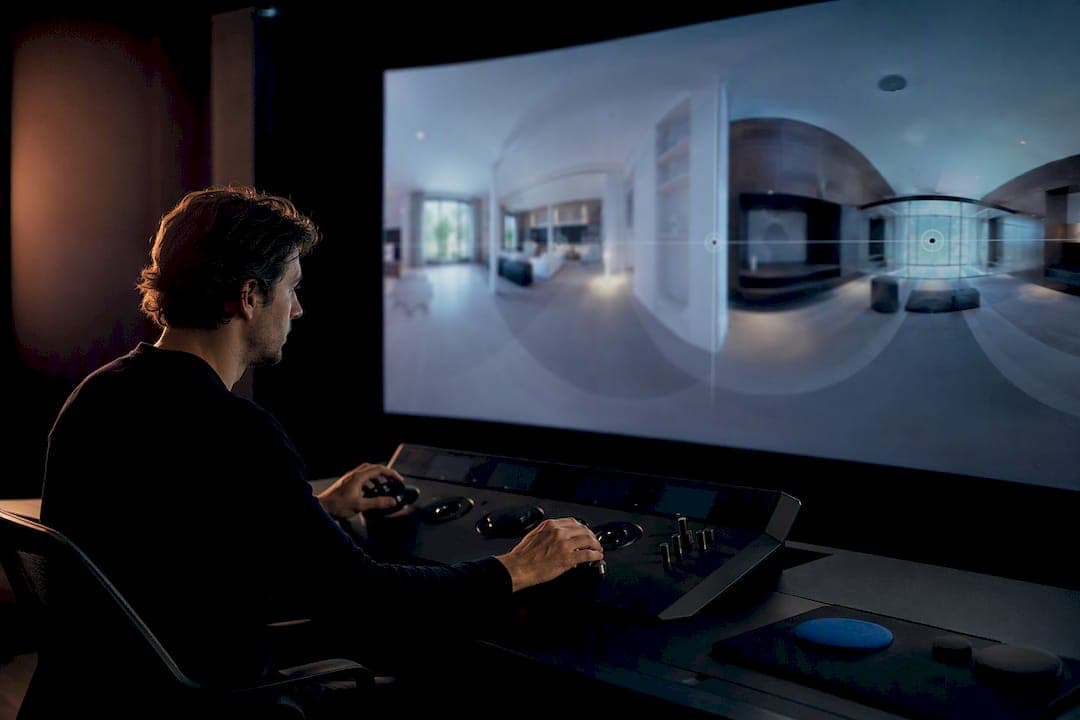
AI editing can reliably remove objects, match color and exposure across a stitched sphere, and generate a full equirectangular panorama from as few as four overlapping photos. It also cuts what used to be an hour of manual retouching down to a few minutes for most browser-based jobs, though very high-resolution files still take longer on local hardware. For photographers publishing to a viewer, the safest path is a projection-aware workflow since it protects the poles and seams that generic photo editors tend to warp. Simple Virtual Tour builds that projection awareness directly into its publishing pipeline, so the file you edit is the file that displays correctly.
TL;DR:
- Most AI editing tools improve stitching and editing of 360 photos, but only projection-aware platforms prevent pole pinch and seam misalignment issues.
- High-resolution files, especially up to 16K, often require local GPU workflows with tiling to avoid artifacts and maintain detail.
- Proper workflow includes steady camera positioning, initial seam check in a sphere viewer, low-res draft edits, then full-resolution processing before final export and QA in a viewer.
- Many tools output standard equirectangular files in 2:1 ratio, but must support formats like cubemaps or VR-ready images for different applications; testing with real files is essential.
- AI generation from standard photos requires 4 to 8 overlapping images, and text prompts can create entire panoramas without photos, enabling low-cost, hardware-light production for varied projects.
Table of Contents
- What Can AI Edit 360 Photos Actually Do?
- How Do You Edit a 360 Photo With AI Step by Step?
- Why Do 360 Edits Break at the Seams and Poles?
- How Do You Choose an AI 360 Photo Editor?
- How Does AI Generate a 360 Photo From Regular Pictures?
- Should You Edit on Mobile, Desktop, or in the Browser?
- What Do AI 360 Editing Tools Typically Cost?
- Which AI Tools Handle 360 Photo Editing Well?
- What Goes Wrong With AI Editing 360 Photos?
- How Do You Avoid Artifacts in AI-Edited 360 Photos?
- Is AI Editing Better Than Manual Editing for 360 Photos?
- Who Benefits Most From AI 360 Photo Editing?
- A Publisher's View on AI and Projection-Aware Editing
- Publish Your AI-Edited 360 Photos With Simple Virtual Tour
- Sources
- FAQ
What Can AI Edit 360 Photos Actually Do?
Ask an AI 360 editor to do something a client wants and, in most cases, it can. The core features have matured past novelty status into genuine production tools, and understanding what each does helps you pick the right one for a given shoot.
Object removal clears tripods, cars, stray pets, or a photographer's own reflection from a scene without manually cloning pixels frame by frame. Virtual staging adds furniture or decor to an empty room, a feature real estate photographers lean on heavily for listings shot before move-in. Color and tonal matching evens out exposure differences between the multiple shots that make up a stitched panorama, a common failure point when a room has mixed window and lamp lighting. Other frequent tasks include sky replacement, daylight-to-dusk conversion, and adding icon or text overlays for hotspots and branding, plus blur or anonymization for faces and license plates.
It helps to separate two different jobs that get lumped together under "AI 360 editing":
- Generation creates a new 360 image, either from a text prompt or by stitching several standard photos into one seamless sphere.
- Editing modifies an existing panorama or native 360 camera capture, fixing specific problems rather than building the image from scratch.
- Retouching covers small, targeted fixes like object removal or blemish cleanup applied directly to a finished panorama.
Output format matters as much as the edit itself. Most tools export equirectangular files at a 2:1 ratio, the standard sphere-to-flat-map projection that every major viewer expects. Others also offer cubemap or skybox exports for game engines, and VR-ready PNG or JPEG files sized for headset playback.
How Do You Edit a 360 Photo With AI Step by Step?
A predictable workflow beats trial and error, especially once you're delivering finished tours on a deadline. Here's the sequence that keeps quality consistent from capture to export.
- Capture with a fixed pivot point. Keep the camera's nodal point steady between shots and hold exposure settings constant, since AI stitching struggles with frames that shift brightness or perspective mid-sequence.
- Confirm overlap and source format. If you're building a panorama from standard photos rather than a dedicated 360 camera, aim for 4 to 8 overlapping frames with about 30% overlap between each, which gives the stitching model enough shared detail to align seams cleanly.
- Check seams and poles before editing. Load the raw stitch into a sphere viewer first. Fixing a bad seam after you've already applied color edits means redoing both.
- Run a low-resolution draft edit. Apply object removal, color matching, or staging at reduced resolution to catch obvious errors fast, then correct anything that looks off before committing to a full-resolution pass.
- Re-run at full resolution. Once the draft looks right, process the final file at your target export size.
- Export and verify. Preview the finished panorama in an actual viewer, not just a flat thumbnail, and check that the poles (top and bottom of the sphere) haven't pinched or smeared.
Pro Tip: Never judge a 360 edit from the flat equirectangular thumbnail alone. A distortion that looks minor on the flat map can appear as a visible seam or warped ceiling once the image wraps into a sphere.
If you're shooting from stitched photos rather than a dedicated camera, Simple Virtual Tour's guide to creating 360-degree photos covers the capture fundamentals that make step two above go smoothly.
Why Do 360 Edits Break at the Seams and Poles?
Standard photo editors, including most AI tools built for flat images, treat a 360 photo as a rectangular picture. That assumption is what causes the two most common failures in AI edited panoramas: pole pinch and seam misalignment.
The top and bottom of an equirectangular image represent single points on the sphere, stretched across the entire width of the flat file. An editor that doesn't understand this geometry can smear or duplicate detail at the poles, a defect sometimes called pole pinch. Seams show up where the left and right edges of the flat image are supposed to wrap seamlessly into one continuous horizon; naive edits often leave a visible line or color mismatch exactly where the image should loop.
Projection-aware tools handle this differently. They apply seam-aware inpainting so object removal doesn't leave a visible edge at the wrap point, and some reproject the sphere into a cubemap, editing each face separately before converting back, which avoids the pole distortion entirely.
Resolution is the other deciding factor in tool choice:
- Browser-based editors handle most jobs comfortably up to moderate resolutions and finish in minutes.
- Very high-resolution files, sometimes up to 16K, often move to local GPU workflows that split the sphere into tiles for targeted, artifact-free processing.
- A quick three-step test routine, draft preview, seam check, final export, catches most projection errors before a client ever sees them.
How Do You Choose an AI 360 Photo Editor?
Not every AI editor marketed for "360 photos" actually understands spherical projection, and the gap shows up fast once you export. Run through this checklist before committing to a tool or a paid plan.
Core criteria to weigh:
- Does it preserve equirectangular projection, or does it just apply flat-image filters to a panorama?
- What export formats are available: equirectangular, cubemap, skybox, VR-ready files?
- Is there a resolution ceiling, and does quality hold up at your typical delivery size?
- Can it batch process multiple panoramas, or is every edit a one-by-one manual job?
- Does it offer an API or plugin for folding into an existing pipeline?
- Is pricing a flat subscription, pay-per-image, or tied to local compute time?
- Does it support self-hosting if data privacy or client confidentiality matters to your business?
Before paying for a plan, test the tool with real material. Upload a completed equirectangular file and check the export against the original. Then try stitching four to eight overlapping photos yourself to see how the tool handles seam alignment on your own gear, not a polished demo image.
Watch for a few red flags: no equirectangular export option, visible seam artifacts in every sample, no free preview before purchase, or forced low-resolution downloads on the free tier. Any of these usually signals a tool built for flat photos with a 360 label bolted on.
How Does AI Generate a 360 Photo From Regular Pictures?
Photo-to-360 generation works by feeding an AI model several standard photographs of the same space, taken from a fixed point while rotating the camera, and letting the model stitch them into one continuous sphere. The practical requirement is four to eight photos with roughly 30% overlap between adjacent frames, enough shared visual data for the model to align edges and blend exposure automatically.
Text-to-360 generation skips photography entirely. You describe a scene, and the model produces a complete equirectangular panorama from the prompt alone. Several platforms now offer this alongside photo-based stitching, both landing on the same 2:1 equirectangular output that feeds directly into VR viewers and virtual tour software.
The overlap requirement isn't arbitrary. Too little shared detail between frames and the stitching algorithm has nothing reliable to match, which produces visible ghosting or duplicated objects at the seams. Overlap that's too generous wastes shooting time without improving the result. That 30% figure is the practical middle ground most stitching models are trained around.
This matters most for photographers who don't own a dedicated 360 camera. A standard DSLR, mirrorless body, or even a phone can produce source material for AI stitching, which lets you offer 360 tours as a service without the upfront hardware investment a dedicated rig requires. The tradeoff is more shooting discipline: a shaky pivot point or inconsistent exposure between frames causes far more stitching errors than the same mistakes would on a single-shot 360 camera.
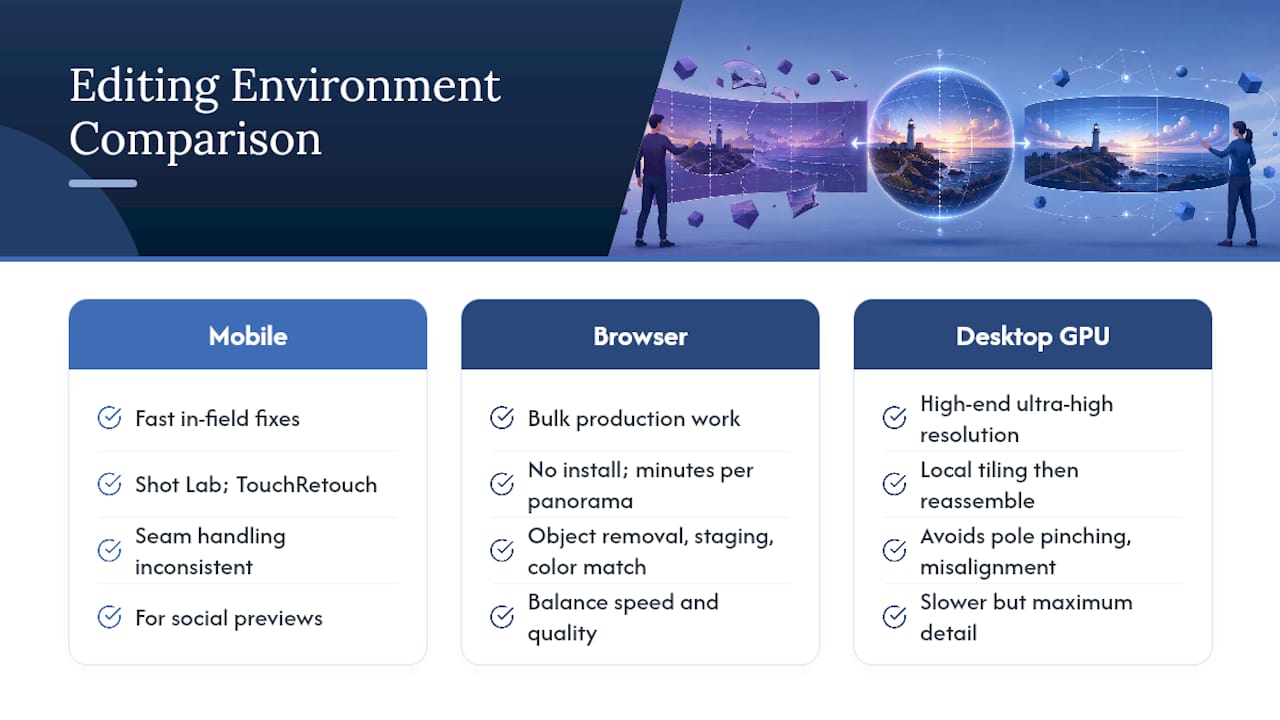
Should You Edit on Mobile, Desktop, or in the Browser?
Where you edit depends mostly on file size and how much control you need over the final result, and each environment fits a different stage of the job.
Mobile apps work best for fast, in-the-field fixes. Camera-integrated tools like Insta360's Shot Lab apply AI edits and creative effects directly on a phone, right after capture, which suits social content and quick client previews more than final production files. General retouch apps such as TouchRetouch also run on mobile for spot fixes, though they weren't built with spherical projection in mind, so seam and pole handling can be inconsistent.
Browser-based editors handle the bulk of production work. They need no installation, process most panoramas in a few minutes, and typically include the object removal, staging, and color matching features photographers use most often. This is where the majority of real estate and virtual tour editing happens today, since it balances speed against quality without demanding local hardware.
Desktop and local GPU workflows come into play at the high end. When a file needs to hold up at very high resolution, some professionals use local tiling that splits the sphere into segments (sometimes hexagonal) and processes each one on a GPU before reassembling the sphere. This avoids the pole pinching and edge misalignment that can appear when a single pass tries to handle an entire ultra-high-resolution sphere at once. It takes longer than a browser edit, but it's the standard approach when a client needs maximum detail, such as an architectural walkthrough meant for large-format display.
What Do AI 360 Editing Tools Typically Cost?
Turnaround time and pricing structure both hinge on where the processing happens. Browser-based edits on moderate-resolution files usually finish in a few minutes, and most platforms offer a free trial or a limited free tier, enough to test object removal or color matching on a handful of images before committing to a paid plan.
Paid plans generally follow one of two shapes. Subscription pricing charges monthly or yearly for a set volume of edits or exports, which suits photographers with a steady stream of listings or tours. Pay-per-image or credit-based pricing suits occasional users who don't want a recurring charge for sporadic jobs.
Local GPU workflows shift the cost elsewhere. Instead of paying a platform per edit, you're paying for compute time and hardware, and processing an ultra-high-resolution file with tiled rendering takes meaningfully longer than a cloud edit, sometimes tens of minutes rather than two or three. That tradeoff makes sense for a handful of hero images per project, not for batch-processing an entire property.
For software that combines editing with publishing, pricing shapes look different again. Rather than paying per edit, a platform might charge a subscription for cloud hosting or a one-time fee for self-hosted software, with the editing features bundled into the platform rather than billed separately. That model suits photographers who want predictable costs across dozens of tours a year rather than a variable per-image bill that scales unpredictably with volume.
Which AI Tools Handle 360 Photo Editing Well?
No single tool dominates every part of the workflow, and the smartest approach is matching the tool to the specific task rather than hunting for one platform that does everything.
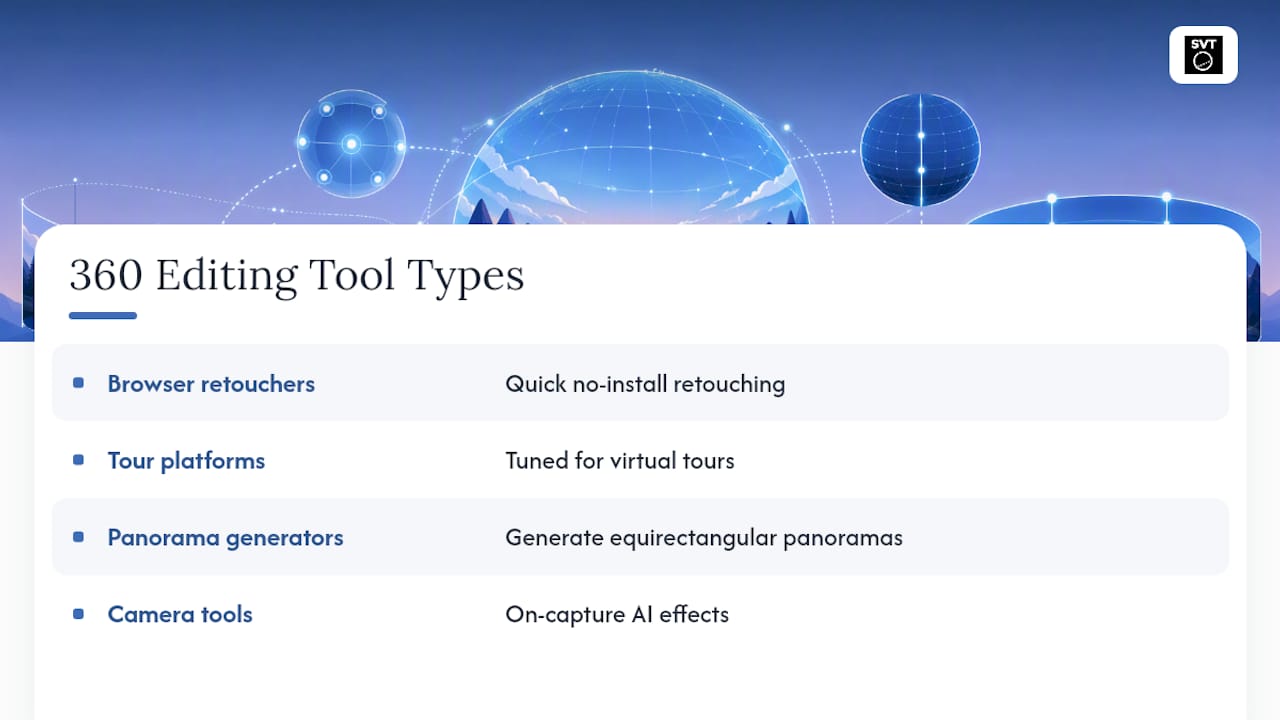
For quick, no-install retouching, browser-based editors built specifically for panoramas handle common jobs well. PanoCool Retouch demonstrates the category: object removal, virtual staging, overlays, and blur or anonymization, all usable directly in a browser without downloading software. That kind of tool suits a photographer who needs to clean up a handful of panoramas between shoots without switching environments.
For tour-specific enhancement, platforms built around real estate and virtual tour workflows tend to tune their models toward the details that matter for that use case. Autoenhance focuses on sharper detail and color vibrancy specifically for virtual tour panoramas, an example of tooling built around a single use case rather than general photo editing.
For generation rather than editing, dedicated panorama makers turn text prompts or a handful of standard photos into a complete equirectangular sphere, useful when you need a background scene or a placeholder panorama without a full 360 shoot.
For camera-integrated editing, vendor tools built into the capture ecosystem, like Shot Lab from Insta360, apply AI effects immediately after shooting, which suits creators prioritizing speed over deep production control.
The pattern across all of these: purpose-built beats general-purpose. A flat-image editor with a "360" label rarely handles projection correctly, while a tool built around equirectangular files from day one gets seams and poles right by default.
What Goes Wrong With AI Editing 360 Photos?
The most common failure isn't a bad edit, it's an edit that looks fine on a flat preview and falls apart once the image wraps into a sphere. Seam mismatches, pole smearing, and color banding near the top and bottom of the frame are the recurring problems photographers run into with tools that weren't designed around spherical projection.
Another limitation shows up with virtual staging and object removal in high-detail scenes. AI models can struggle with reflective surfaces, glass, and mirrors, since a removed object might still show a ghost reflection in a nearby window. Complex lighting, like a room lit by both daylight and warm interior lamps, can also confuse automatic color matching, leaving one section of the panorama looking slightly off compared to the rest.
Resolution limits are a practical constraint too. Many browser tools cap output at a resolution well below what a dedicated high-end camera captures natively, which forces a choice between convenience and maximum detail on flagship projects.
The fixes are mostly procedural rather than technical. Always preview edits in a sphere viewer rather than judging a flat thumbnail. Run a low-resolution draft first to catch obvious errors before committing to the final pass. For reflective surfaces or complex lighting, manual spot correction after the AI pass still beats trusting full automation. And for projects where resolution truly matters, moving to a local GPU tiled workflow avoids the ceiling that browser tools impose, at the cost of longer processing time.
How Do You Avoid Artifacts in AI-Edited 360 Photos?
Quality control in 360 editing comes down to catching problems before they reach the final export, since fixing a finished, fully-processed panorama takes far longer than catching the same issue at the draft stage.
Start with capture discipline. A steady pivot point and consistent exposure across your source frames prevent most stitching artifacts before editing ever begins, and no amount of AI correction fully compensates for a shaky tripod or inconsistent white balance mid-sequence.
During editing, work at low resolution first. Applying object removal or color matching to a downscaled draft lets you spot seam problems or color mismatches quickly, without waiting through a full-resolution render every time you want to check a change. Once the draft looks clean, commit to the full-resolution pass.
Always check the poles specifically, not just the horizon line. Because the top and bottom of an equirectangular image compress into single points on the sphere, a subtle blur or duplication there is easy to miss on a flat preview but obvious once viewed in a real headset or interactive viewer.
Finally, preview in an actual sphere viewer before calling a file finished. A flat-image thumbnail simply can't show you how a seam or pole edit behaves once wrapped, which is why the final QA step belongs in a viewer, not an image editor's canvas.
Is AI Editing Better Than Manual Editing for 360 Photos?
AI editing wins decisively on speed for routine tasks. Object removal, color matching, and virtual staging that once took an experienced retoucher thirty to sixty minutes per panorama in manual software now finish in a few minutes through most browser-based tools. For photographers delivering dozens of tours a month, that difference determines how many projects you can realistically take on.
Manual editing still holds an edge on precision for edge cases. Reflective surfaces, complex mixed lighting, and fine detail work near seams sometimes need a human eye and a steady hand, particularly when an AI pass leaves a subtle artifact that only a trained retoucher would catch. Manual tools also give total control over exactly how much of an object gets removed or how a color grade shifts, control that automated tools approximate rather than guarantee.
The practical answer for most working photographers is a hybrid approach: let AI handle the repetitive, time-consuming tasks, object removal, exposure matching, initial staging, then spot-check the result and apply manual touch-ups only where the automated pass falls short. That combination captures most of the speed advantage without sacrificing the final polish a client-ready tour needs.
Cost follows the same logic. AI tools reduce per-image editing cost enough to make small jobs profitable that wouldn't have justified an hour of manual retouching. Manual work still earns its place on flagship projects where every detail needs a second look before delivery.
Who Benefits Most From AI 360 Photo Editing?
Real estate is the clearest beneficiary. Listings need fast turnaround, consistent lighting across every room, and the ability to stage empty spaces without physically furnishing them, all tasks AI editing handles well at volume. A photographer covering multiple listings a week depends on the speed AI editing provides just to keep pace with demand.
Virtual tour production for hospitality, museums, and retail spaces benefits similarly, particularly where a single space needs to be shown in multiple lighting conditions or seasonal states without rescheduling a shoot. Sky replacement and daylight-to-dusk conversion let one capture session produce several finished variants.
Gaming and VR content creators use AI-generated panoramas as environment backgrounds or skybox textures, where text-to-360 generation can produce usable scene material without a location shoot at all. Architecture and interior design firms use the same virtual staging capabilities as real estate, presenting a space furnished several different ways from one empty-room capture.
Educators and museums increasingly rely on AI-enhanced 360 tours for remote access to spaces that would otherwise require travel, from historical sites to laboratory facilities. In every case, the common thread is volume and turnaround: AI editing pays off most where a business needs many finished panoramas quickly, rather than one perfect image with unlimited production time.
A Publisher's View on AI and Projection-Aware Editing
Most AI editing tools get built for flat photos first and retrofitted for spheres later, which is backwards for anyone producing tours professionally. Simple Virtual Tour approaches it the other way: projection preservation comes first, editing features second, across both cloud-hosted and self-hosted deployment. That order matters because a tool that respects equirectangular geometry from the start avoids the pole pinching and seam drift that plague bolted-on 360 features, which keeps turnaround fast without sacrificing the VR-ready consistency a finished tour needs.
— Andrea
Publish Your AI-Edited 360 Photos With Simple Virtual Tour
Editing a panorama is only half the job. Getting it into a viewer without breaking the projection you just fixed is the other half, and that's where Simple Virtual Tour's approach to publishing pays off for photographers already working with AI-edited files.
The platform supports both cloud-hosted subscriptions and one-time self-hosted purchases, allowing control over tour data location and cost management. Its AI multimedia editing preserves projection through publishing, exporting equirectangular files ready for VR headsets and web viewers, and supports unlimited tours without project caps per plan. If you're building a workflow that handles both AI-edited panoramas and dedicated 360 camera footage in one place, creative resources like AmmarAI's image-to-video tools can round out a broader content pipeline alongside your tour publishing setup. Start with a free trial of Simple Virtual Tour and publish your first AI-edited panorama today to see how the projection holds up in a real viewer.
Sources
For deeper technical grounding on the topics covered here, see Simple Virtual Tour's guide to AI image editing and projection preservation, the 360-degree photo capture guide, and the full Simple Virtual Tour blog for ongoing 360 photography and business guides.
- AI 360 panorama generator — Collov
- Autoenhance
- Shot Lab: The AI Tool That Edits Epic Clips For You in Minutes
FAQ
Is There a Free AI 360 Image Generator Available?
Several platforms offer free tiers or trials for generating equirectangular panoramas from text prompts or stitched photos, though free plans typically cap resolution or the number of exports.
Can ChatGPT Create 360 Images?
ChatGPT itself doesn't generate true equirectangular 360 panoramas; dedicated panorama generators handle text-to-360 and photo-to-360 creation specifically, producing the 2:1 projection a 360 viewer requires.
Is There an AI That Will Edit Photos?
Yes, and for 360 photos specifically, projection-aware tools handle object removal, color matching, and virtual staging while preserving the equirectangular format needed for VR and tour viewers.
How Do You Use AI to Edit Insta360 Footage?
Insta360's Shot Lab applies AI-assisted edits and creative effects directly within the app right after capture, making it a fast option for social content, though production-grade tours often move to a projection-aware editor for final polish.
Do AI 360 Editors Work With Photos From a Regular Camera, Not a 360 Camera?
Yes, AI stitching tools can build a complete panorama from four to eight standard photos shot with roughly 30% overlap between frames, which means you don't need a dedicated 360 camera to produce tour-ready panoramas.