
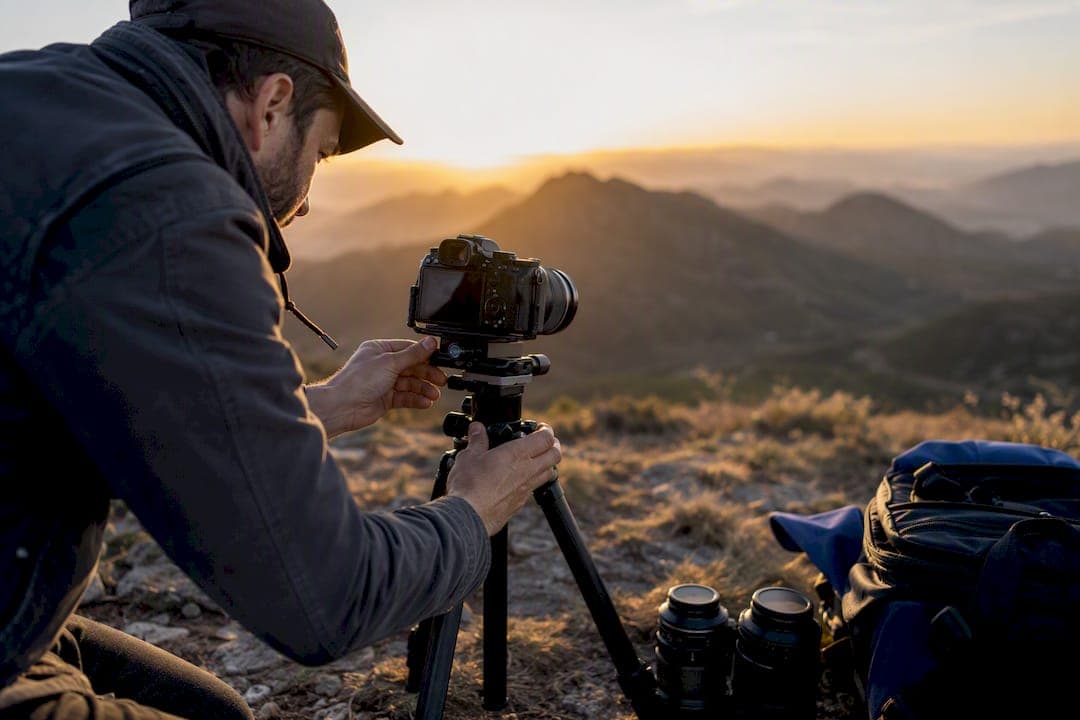
Yes, you can stitch multiple photos into a seamless panorama by capturing overlapping frames at roughly 15 to 30% overlap, locking your exposure, and running feature-based stitching software to align and blend the results. The fastest reliable path is simple: shoot level, keep your settings locked across every frame, then let your stitcher's auto-align and multi-band blending do the heavy lifting before you export to TIFF or JPEG, following practical tips from The Photographer's Guide to SWOT Analysis.
TL;DR:
- Overlap frames by 15 to 30 percent and keep exposure, white balance, and focus locked to improve stitching accuracy and reduce errors.
- Manual control points and different projection modes can solve common alignment failures and scenes with repetitive patterns or poor detail.
- Shooting with RAW or high-quality JPEG, along with full-resolution TIFF exports, ensures better tonal information and flexibility for big prints or HDR panoramas.
- Use the appropriate projection mode for the scene, such as rectilinear for architecture or spherical for full 360-degree tours, to simplify editing and optimize results.
- After stitching, export the panorama as a high-resolution TIFF or JPEG, and consider a dedicated virtual tour platform for publishing and interactive viewing.
Table of Contents
- How Do You Stitch Photos Into a Panorama?
- What Camera Settings Minimize Stitching Problems?
- Why Do Panoramas Fail to Align, and How Do You Fix It?
- Which Software Settings Actually Matter?
- What File Format and Resolution Work Best for Stitching?
- How Should You Export and Save Your Finished Panorama?
- From Stitched Panorama to Interactive Tour
- Where Stitching Advice Usually Goes Wrong
- Turn Your Stitched Panoramas Into Interactive Tours
- Sources
How Do You Stitch Photos Into a Panorama?
Panoramic photo stitching follows the same five stages no matter which software you use, from budget-friendly mobile apps to professional tools like PTGui or Hugin. Once you understand the sequence, you can troubleshoot almost any stitcher because the logic underneath stays consistent.
-
Prepare your files. Shoot RAW when you can, or high-quality JPEG if storage is tight. Confirm your frames overlap by 15 to 30%, and check that exposure and white balance match across the set. Convert RAW files to a consistent format before importing if your stitcher requires it.
-
Load the images and run automatic alignment. Most software detects matching features across frames without help. If the program offers projection choices, test Auto, Perspective, Cylindrical, and Spherical modes side by side. Photomerge in Photoshop, for instance, gives you all four plus a Collage option, and the results can differ noticeably depending on your scene's geometry.
-
Review the alignment. Auto-detection fails occasionally, especially in scenes with repeating patterns or few distinct features. When it does, add manual control points at matching landmarks and run bundle adjustment if your software supports it. This global optimization step redistributes small errors across the whole panorama instead of letting them pile up at one seam.
-
Fix exposure and ghosting. Apply exposure compensation or merge bracketed shots through HDR blending if seams show brightness jumps. Turn on deghosting if people or cars moved between frames, then run multi-band blending to smooth the transitions.
-
Crop, straighten, and export. Trim the ragged edges left by projection distortion, straighten the horizon, and export at full resolution. Use TIFF for archiving or print work since it's lossless, or high-quality JPEG for web publishing. If you built an HDR panorama, EXR or TIFF preserves the extra dynamic range better than JPEG ever could.
What Camera Settings Minimize Stitching Problems?
Good stitching starts before you ever open software. The habits below cost you almost nothing in the field but save real time at the computer.
- Overlap every frame by 15 to 30%. This gives feature-based matchers enough shared detail to lock frames together accurately, according to the standard guidance on image stitching. Less than that, and matching software starts guessing.
- Lock exposure, white balance, and focus. Shooting in manual mode, or using exposure lock, keeps brightness and color consistent across the sequence so seams don't announce themselves.
- Level your camera. A bubble level or a tripod head with markings reduces the manual corrections you'll need later, particularly for architectural or multi-row work.
- Watch your aperture. Choose an f-stop that gives you enough depth of field across the whole scene. Very shallow depth of field creates focus mismatches between frames that software can't blend away.
- Move fast in scenes with motion. Wind-blown trees, walking pedestrians, and passing cars are the enemy of clean stitches. Shoot your sequence in a tight burst rather than lingering.
Pro Tip: If your scene has near-field objects at different distances, rotate the camera around its nodal point using a panoramic head instead of the tripod's center screw. This eliminates the parallax shift that causes doubled edges on foreground objects, and it's the difference between an amateur stitch and a professional one on complex scenes.
Why Do Panoramas Fail to Align, and How Do You Fix It?
Every stitching problem traces back to one of two things: geometry or exposure. The core technical challenge in image stitching is balancing geometric alignment against photometric matching, and parallax or scene movement causes most real-world failures.
- Alignment failures. Increase your overlap on the next shoot, add manual control points around matching landmarks, or double-check that your horizon is level. Switching projection modes sometimes resolves stubborn failures too.
- Ghosting from moving subjects. Enable your software's deghosting feature, or manually pick a reference frame to fill the moving area. If you're shooting a busy scene, reshoot faster next time to shrink the movement window.
- Visible exposure seams. Apply exposure compensation between frames, use your stitcher's gain-matching tool, or merge bracketed exposures into HDR before stitching.
- Lens distortion and vignetting. Apply a lens correction profile before you stitch, not after. Wide-angle lenses with heavy barrel distortion make alignment harder, so a lower-distortion lens pays off on wide-coverage panoramas.
Which Software Settings Actually Matter?
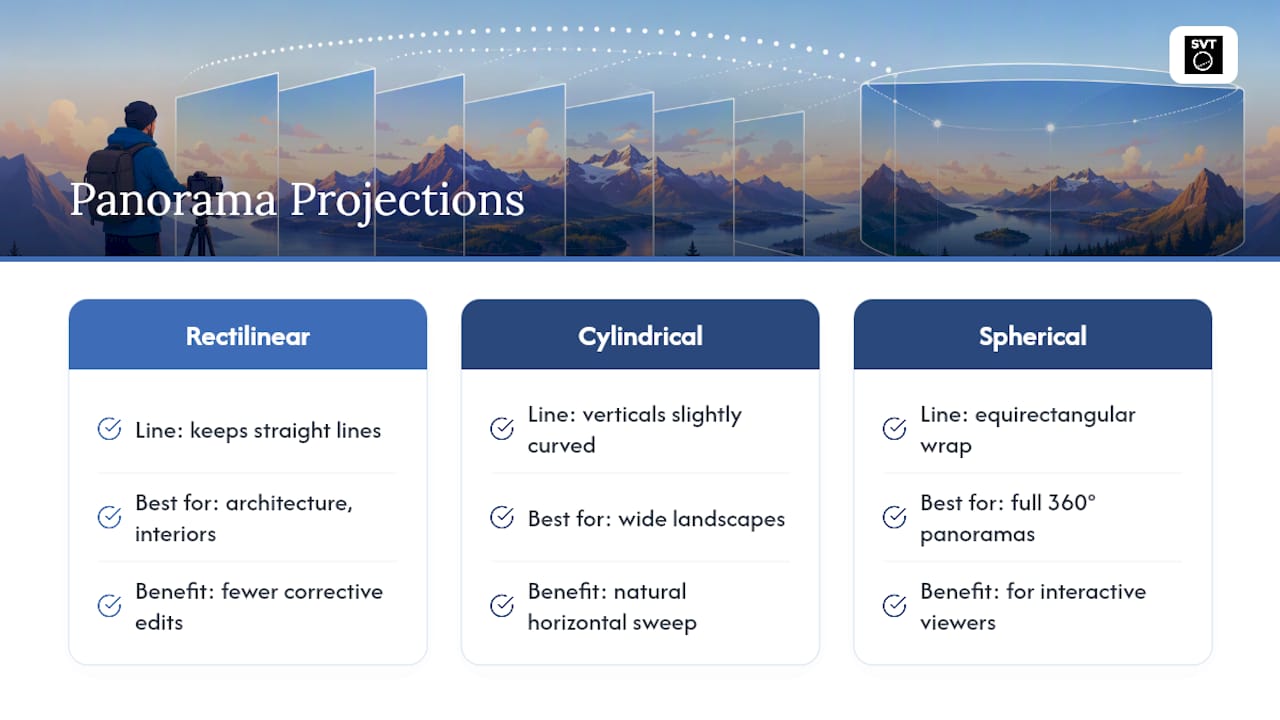
The projection you choose shapes how your final panorama looks and behaves, and picking the wrong one for the scene creates work you didn't need to do. Rectilinear projection keeps straight lines straight, which makes it the right call for architectural interiors and building facades. Cylindrical projection suits wide horizontal landscapes where you want a natural sense of sweep without bending vertical lines too much. Spherical, or equirectangular, projection is what you need for full 360° panoramas destined for interactive viewers.
Feature-based auto-alignment handles most scenes without help, but scenes lacking distinctive detail, like open water or plain sky, confuse the matching algorithm. In those cases, add manual control points or shoot with extra overlap to give the software something to grab onto.
Multi-row panoramas and gigapixel projects need more planning. Shoot in a consistent grid pattern, top row to bottom row, and let your stitcher's bundle adjustment run a global optimization across the whole set. Tools built for this, such as PTGui or Hugin, expose the memory and processing settings you'll want to watch, since a 40-frame gigapixel stitch can eat through RAM fast.
For HDR panoramas, either merge each frame's bracketed exposures into an HDR image before stitching, or use a stitcher with native HDR support to avoid inconsistent tone mapping across the final image.
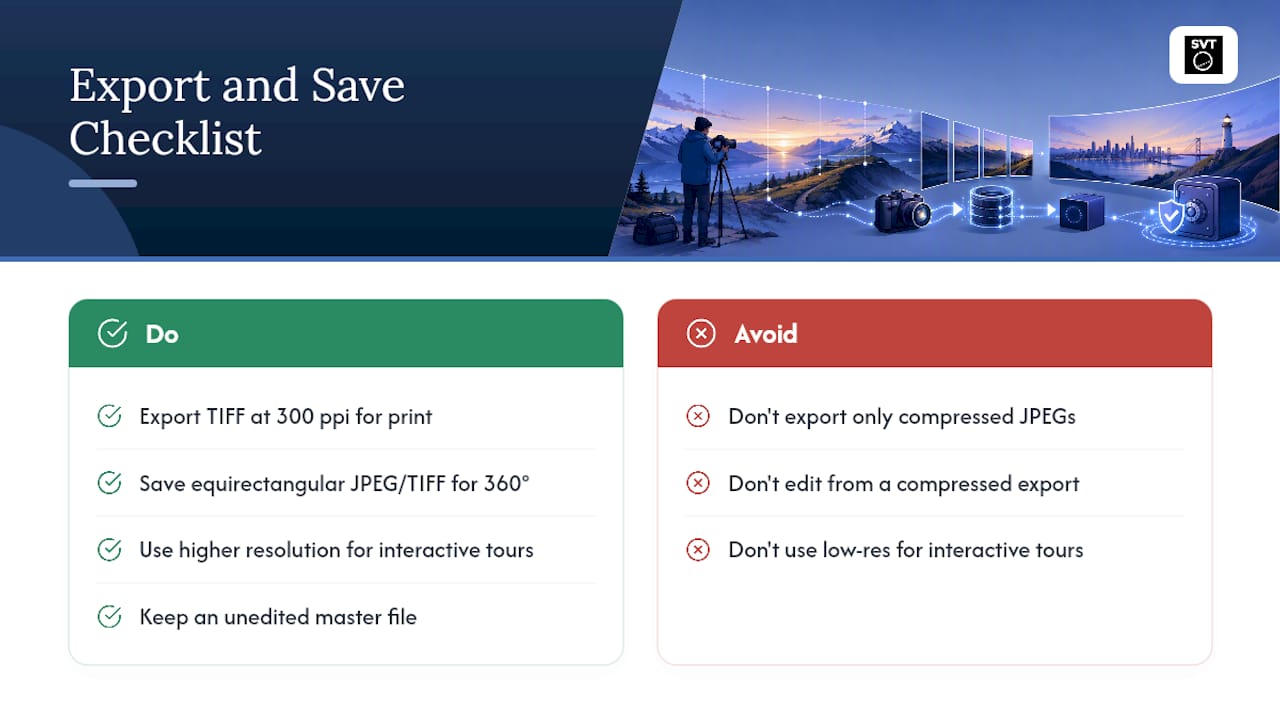
Export choices depend on the destination: TIFF for archiving and print, high-quality JPEG for web galleries, and 300ppi resolution when the panorama is headed for physical printing.
What File Format and Resolution Work Best for Stitching?
Source images matter more than most people expect. RAW files give your stitching software more tonal information to work with during blending, which shows up as smoother gradients across exposure seams. If RAW isn't practical, shoot the highest-quality JPEG your camera allows, since compression artifacts compound across multiple frames and become visible in the final panorama.
Resolution decisions should work backward from your output. A panorama headed for a website gallery rarely needs more than 4,000 to 6,000 pixels on its long edge. One destined for a large print or an interactive 360° tour benefits from stitching at full native resolution, since you can always downsize later but you can't add detail that was never captured.
Once stitched, TIFF is the safer intermediate format because it's lossless. You can reopen a TIFF for further edits without accumulating compression damage the way repeated JPEG saves do. Reserve JPEG for the final export step, when the file is headed to a website or a client and you want a smaller size without another round of editing. For HDR panoramas, EXR or 32-bit TIFF preserves the extended dynamic range that a standard JPEG simply can't hold.
How Should You Export and Save Your Finished Panorama?
Your export settings should match where the panorama is going, not just what looks good on your screen. A panorama meant for large-format printing needs a full-resolution TIFF at 300ppi, so a print lab has enough data to work with.
Interactive 360° panoramas follow a different rule entirely. These need to be saved as equirectangular images, typically in JPEG or TIFF, at resolutions that support close zooming without pixelation, since viewers can pan and zoom freely once the tour is live. A panorama that looks sharp as a flat image can look soft the moment someone zooms into it inside a 360° viewer, so err toward higher resolution for anything meant to be explored interactively.
Keep an unedited master file alongside your exported versions. If a client requests a different crop or a new export size down the road, you'll want the original stitch rather than working backward from a compressed JPEG. This single habit, saving both the working file and the final export, saves more rework than any software setting you'll adjust.
From Stitched Panorama to Interactive Tour
Once you've got a clean, stitched panorama, the natural next question is what to do with it. A flat panorama sitting in a folder doesn't do much for a real estate listing or a museum exhibit. That's where publishing software takes over from stitching software.
Simple Virtual Tour accepts your stitched 360° photos directly and turns them into interactive tours, with the option to host on the cloud or self-host for full control over your data. Over 1,400 users currently run their tours through the platform, drawn by features like live session hosting, e-commerce integration, and a backend built for people who aren't developers.
The publishing path is straightforward: export your finished panorama as an equirectangular TIFF or high-resolution JPEG, upload it into Simple Virtual Tour, then add hotspots and navigation links before you publish. If you want a deeper look at building the 360° source images before this step, our guide to creating 360-degree photos walks through the capture side in more detail.
Where Stitching Advice Usually Goes Wrong
Most stitching tutorials treat the software as the whole story, and that's backward. The real bottleneck isn't which stitcher you buy. It's what you captured before you ever opened it. I've seen more panoramas ruined by inconsistent exposure between frames than by any software limitation, and no amount of post-processing fully undoes a white balance shift halfway through a sequence.
The other overlooked point: people chase perfect auto-alignment when the smarter move, on a scene with poor overlap or repetitive texture, is to stitch in strips first. Combine three or four neighboring frames into a smaller panorama, then merge those strips together. It sounds like extra work, but it succeeds where a single global auto-detect attempt on thirty images just spins and fails.
I'd also push back on the idea that more expensive gear automatically means better panoramas. A nodal head matters enormously for multi-row architectural interiors with close foreground objects. For a wide landscape with nothing closer than fifty feet, a level tripod and careful overlap get you the same result for a fraction of the cost. Match your tools to the parallax risk in the actual scene, not to what looks professional on a gear list.
Where I do think the industry underserves photographers is the gap between stitching and publishing. Plenty of guides stop the moment you've got a flat panoramic JPEG, as if that's the finish line. For anyone shooting real estate, tourism, or event spaces, the stitched image is a means to an end: an interactive tour someone can actually explore. That last mile, from stitched file to published experience, deserves as much attention as the alignment settings.
— Andrea
Turn Your Stitched Panoramas Into Interactive Tours
Simple Virtual Tour is the fastest route from a finished panorama to a published, interactive tour, without the added agency fees or long design turnaround times that come with hiring someone else to build it for you. You've already done the hard part by capturing and stitching a clean 360° image. Uploading it into a purpose-built platform gets you hotspots, navigation, and a shareable link in far less time than starting a tour build from scratch in general-purpose software.
The platform works whether you want a cloud-hosted subscription with nothing to maintain, or a self-hosted license that keeps your data and hosting costs under your own control. Real estate agents, tourism operators, museums, and photographers all use it to turn stitched panoramas into tours their clients can walk through remotely, complete with e-commerce integration and live session hosting for guided walkthroughs. If you're weighing other virtual tour platforms first, our comparison of leading alternatives is worth a look before you decide.
Ready to see it with your own stitched images? Start with Simple Virtual Tour and upload your first panorama today.
Sources
- Image stitching — Wikipedia
- Create panoramic images with Photomerge — Adobe HelpX
- Image alignment and stitching: a tutorial — Richard Szeliski