
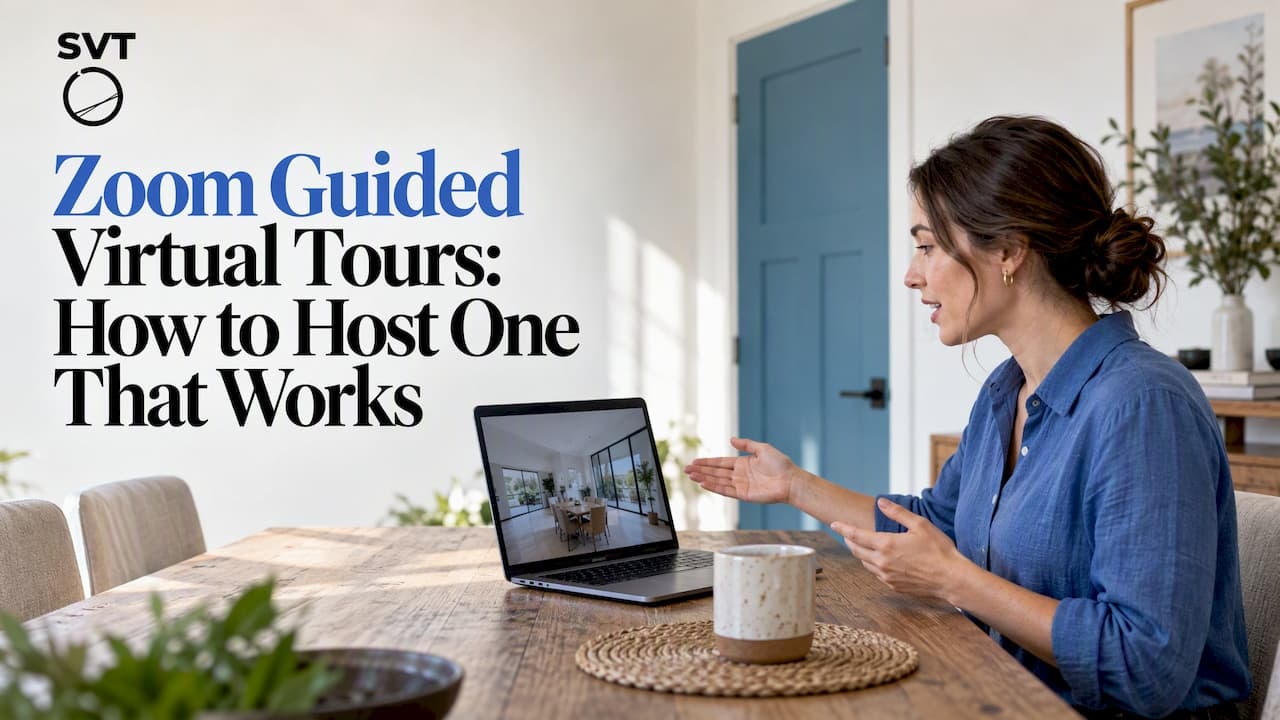
A Zoom guided virtual tour is a live walkthrough of a place, such as a home, hotel, museum or showroom, that you lead on a Zoom call by sharing an interactive 360° tour on your screen. You talk, move through the rooms, and answer questions in real time. It is not the same thing as Zoom's own product showcase of the same name, and it is not a self-guided tour a visitor clicks through alone. Below you will find the equipment, the setup, a step-by-step run of show, and the accessibility and privacy checks worth doing before you invite anyone.
TL;DR
- Build or open an interactive 360° tour, join Zoom, share the browser window, and navigate while you talk. Participants see what you see and can ask questions as you go.
- Use a wired headset, a wired internet connection and a test run before the event. These are the basics Zoom itself recommends for engaging online events.
- Plan the route in advance: three to six stops, one point per stop, and a pause for questions at each.
- Add accessibility details to the invitation and plan captions. For US organizations, DOJ guidance treats this as part of running an accessible meeting.
- Keep a self-guided link ready, so people who miss the live session can explore at their own pace.
Table of Contents
- What a Zoom guided virtual tour actually is
- What you need before you host
- How to present a virtual tour inside Zoom
- How to run the session, step by step
- Where this format works best
- Fixing the problems that show up most
- Accessibility, recording and privacy
- Our perspective: the call is the stage, the tour is the set
- Build the tour you will guide
- Pre-tour checklist
- FAQ
- Sources
What a Zoom guided virtual tour actually is
The phrase gets used for three different things, and it helps to separate them.
- A host-led tour on a Zoom call. You are the guide. A prepared virtual tour is on your screen, a group is watching, and you steer. This is what most real estate agents, hotels, museums and educators mean, and it is what this article covers.
- Zoom's Guided Tour. This is a website from Zoom made of click-through product vignettes. According to Zoom's Guided Tour page, it lets people explore how Zoom's collaboration platform makes connecting easier, more immersive and more dynamic. It is a demo of Zoom, not a way to tour your property or venue.
- A self-guided virtual tour. A visitor opens a link and clicks through panoramas on their own schedule. There is no live guide.
The host-led format sits between the other two. You get the control of a self-guided tour (the visitor sees a polished, explorable space) with the persuasion of a person who can read the room and respond. For a buyer deciding on a $600,000 house or a couple choosing a wedding venue, that live voice often answers the doubt that a static gallery cannot.
If you want a deeper look at the live format beyond Zoom, our guide to live guided virtual tours covers how they work and where to use them.
What you need before you host
The good news: the setup is modest. You need four things.
1. A virtual tour worth guiding
Your tour is the content. It should be made of sharp 360° panoramas (equirectangular images shot with a 360 camera or stitched from multiple frames), linked together with clear navigation hotspots between rooms or areas. Add short info points where you plan to stop and talk, such as a floor plan hotspot, a product, a view, or a piece of history.
The tour can also include video and other media. With Simple Virtual Tour you can build unlimited tours from 360° photos, panoramas and video, and add the features that give a guide something to point at.

2. A Zoom account and checked settings
A free Zoom account can host a meeting, but check the limits on your plan before a client call. Zoom's guidance for event hosts says presenters should verify account settings, equipment, audio and video quality, and where content is hosted, as laid out in its Running Engaging Online Events guide. Before the day, confirm who can share their screen, whether chat is on, and whether you want to record.
3. Audio and connection
The same Zoom guide recommends a wired headset with a microphone, a hardwired internet connection, and a tech pack with a camera, mic or lighting if needed. For a guided tour, audio matters more than video. Viewers forgive a slightly dim webcam, not a voice that cuts out mid-sentence.
4. A second screen, if you have one
A second monitor lets you keep the Zoom chat and participant list on one screen while the tour fills the other. Without it, keep a short written route beside you so you are not hunting for the next stop.
How to present a virtual tour inside Zoom
There are two practical ways to show an interactive tour on a call. Both work with any tour that runs in a web browser.
Share the browser window
This is the simplest method. Open your tour in a browser, join the Zoom meeting, click Share Screen, and choose the browser window rather than your whole desktop. Sharing one window keeps notifications and other tabs private, which matters when the tour is for a client.
A few habits make this smooth:
- Open the tour full-size before sharing, and test that the panorama is sharp at the resolution your viewers will see.
- If your tour includes video or sound, look for Zoom's share options for computer audio and video optimization, and test them in your rehearsal.
- Move at a steady pace. Fast panning on a shared screen can look blurry or make viewers feel disoriented, because they see your movement through a compressed video stream.
Hand over the controls
Sometimes the best interaction is letting a participant drive. Zoom's screen sharing allows a host to give remote control to another attendee, so a prospective buyer can click into the kitchen themselves. Use this with one or two people, not a crowd, and only with people you know.
Send a link as a companion
Share the tour link in chat as well. Viewers can open it on their own device, follow along, and return later. This turns a one-time call into a lasting asset. It also protects you if someone's connection is poor: they can follow your voice while exploring the tour themselves.
How to run the session, step by step
A tour guide who wings it loses the room. A simple structure keeps energy up.
- Open with the plan (one minute). Say who you are, how long the tour will take, and how people can ask questions: chat, raised hand, or at the end of each stop.
- Start with the best view. Begin at the entrance, the signature room or the most striking panorama. First impressions on a call form quickly.
- Limit the route. Three to six stops is plenty for 20 to 30 minutes. Each stop gets one clear point: what is here, why it matters, who it is for.
- Narrate what is not visible. A panorama shows the room, but not the sound, the light at 5 p.m., or the walk to the nearest park. Fill that in.
- Pause for questions at each stop. A short pause beats a long Q&A at the end, when attention is gone.
- Use a poll or chat prompt. Ask which room people want to see again, or which option they prefer. It keeps viewers active.
- Close with one next step. Book a physical visit, request a quote, or reserve a date. Put the link in chat while you say it.
- Follow up the same day. Send the self-guided link, the recording if you made one, and the contact details.
We discuss why interactivity keeps people engaged in virtual tours and customer engagement, which is a good companion read for planning the hotspots you will talk through.
Where this format works best
- Real estate. Out-of-town buyers can walk through a listing with the agent, ask about the layout and decide whether to travel. Staging professionals use the same approach to show before and after interiors.
- Hotels, resorts and venues. Show rooms, the pool, the ballroom and the event spaces, then answer questions about capacity and catering live. Event planners can walk a client through several venues in one call.
- Museums, galleries and cultural sites. A curator can lead a virtual exhibition and explain pieces as the group moves through the galleries.
- Education. A teacher can lead a class through a historic site or a lab. Students ask questions as they go.
- Retail, showrooms and dealerships. A salesperson shows a product floor or a vehicle interior. Our pages on virtual tours for retail and showrooms and virtual tours for car dealerships go into those cases.
- Architects and interior designers. Present a project to a client before it is built or finished, and take feedback in the moment.
If you want to sell tickets or run a paid public event instead of a private client call, Zoom has a separate product. According to Zoom's OnZoom help article, OnZoom lets hosts create, list and monetize interactive virtual events, but hosts need a paid Zoom account with a US billing address and registrants must join from within the US. Check the current terms on that page before you plan around it.
Fixing the problems that show up most
Most failed tours trace back to a few causes. Zoom's own event guidance suggests checking audio and video quality, hardwiring the connection, and having backup equipment ready, as described in its event guide. It also recommends a test run-through before the event so hardware malfunctions are caught early. In practice that means:
| Problem | Likely cause | What to do |
|---|---|---|
| Viewers see a frozen or blurry tour | Weak connection or heavy panorama files | Switch to a wired connection, close other apps, and use web-optimized images |
| No sound from tour video | Computer audio not shared | Re-share the window and enable the audio option, then test it |
| Viewers see the wrong window | Whole screen shared by mistake | Share only the browser window |
| Your voice drops out | Wi-Fi or a poor microphone | Use a wired headset and keep a phone as a backup dial-in |
| Someone interrupts or joins uninvited | Open meeting link | Use a passcode, waiting room and restricted sharing |
On that last row: Zoom documentation notes that administrators can restrict in-meeting features such as screen sharing, chat and recording for account users. If you are the account owner, set those controls before you invite anyone. If you work in a larger organization, ask your administrator.
Two habits prevent most embarrassment. Do a full rehearsal with a colleague on a different network, and keep a backup: a second device logged into the same meeting, and the tour link ready to paste into chat.
Accessibility, recording and privacy
A live tour reaches people only if they can follow it. Take these steps before the invitation goes out.
Accessibility. The DOJ's guidance on accessible meetings advises providing appropriate auxiliary aids and accessible materials, and including accessibility information and instructions for requesting services in invitations (ADA guidance on accessible meetings). The same guidance says aids such as real-time captioning or interpreters may be needed, depending on the participants and the meeting's format and content. For a tour, that means turning on captions, describing what is on screen aloud ("we are now in the south-facing living room, with the large window on the left"), and offering a text summary afterward.
The cost of ignoring this can be real. In a 2018 DOJ settlement, the department substantiated that a company violated the ADA by offering inaccessible online courses without closed captions and inaccessible one-on-one tutoring. Your tour is not a course, but the lesson carries over: captions and accessible formats are expected, not optional extras. If your organization is covered by the ADA, ask your legal counsel what applies to you.
The tour itself should be accessible too. Our approach to accessible digital experiences overlaps with web accessibility practices, such as clear text alternatives and readable contrast, and it is worth reviewing the same points for the page that hosts your tour.
Recording. Tell people at the start if you are recording, and say where the recording will go. Zoom's cloud storage is pooled at the account level. According to Zoom's storage documentation, Pro and Business plans include 10 GB per licensed user, with extra storage available from $10 a month for 30 GB. A one-hour tour recording will not fill that, but a library of them over a year might, so check your plan.
Privacy. Do not share a tour of a private home, a client's office or a restricted area without the owner's permission. Use a waiting room, and turn off chat saving if the session may touch sensitive details.
Our perspective: the call is the stage, the tour is the set
We build Simple Virtual Tour, and we see the same pattern in the way our users run live sessions. The video call is only the stage. What decides whether people stay interested is the quality of the tour behind it: sharp panoramas, sensible navigation, and hotspots that give the guide something to talk about.

That is why we focus on the tour itself. Our platform supports unlimited tours, 360° photos, panoramas and video, live sessions, e-commerce integration, statistics and custom branding, and it is designed so people without technical backgrounds can build them. We also offer both cloud-hosted and self-hosted deployment, which matters to organizations that want control over their data or want to avoid ongoing costs.
Our advice for first-timers is simple. Do not build a huge tour. Build one tour of five or six scenes, rehearse it twice, and run it for a real client. You will learn more from one live session than from a week of planning. Then keep the self-guided link live, so every conversation leaves a durable asset behind.
— Andrea
Build the tour you will guide
If you do not have a tour yet, you can start with Simple Virtual Tour at no cost on the Free Forever plan, then move up as you need more. Cloud plans run from €2.99 per month (XS, Starter) to €5.99 (S, Creator), €9.99 (M, Professional), €19.99 (L, Business) and €49.99 (XL, Enterprise). If you prefer to own the software and host it yourself, the CORE product is a one-off $79, with optional plugins: $59 for Google Street View publishing, $39 for AI tools and $269 for multi-user SaaS management.

See the plans and pricing to pick the option that fits, or get started now. You can compare cloud and self-hosted options in the deployment section of our site.
Pre-tour checklist
Print this and run through it 30 minutes before you go live.
- Tour opens quickly and every hotspot link works.
- Zoom meeting has a passcode, waiting room and the right sharing permissions.
- Wired headset, wired connection, backup device ready.
- Captions are on, and the invitation explains how to request accessibility help.
- Route written down: stops, key point at each, one closing action.
- Tour link ready to paste into chat.
- Recording decision made and announced.
- Notifications silenced on your computer and phone.
FAQ
Can I show a 360° virtual tour in a Zoom meeting?
Yes. Open the tour in a web browser, click Share Screen in Zoom, and choose the browser window. You navigate and narrate while participants watch. You can also paste the tour link in chat so people can explore on their own devices.
Is a Zoom guided tour the same as Zoom's Guided Tour website?
No. Zoom's Guided Tour is a set of click-through product demonstrations about Zoom itself. A Zoom guided virtual tour is a live walkthrough of your own space or product that you lead on a call.
What equipment do I need to host one?
A computer, a wired headset with a microphone, and a wired internet connection are the core items, in line with Zoom's event guidance. Add a webcam and lighting if you want to be on camera, and run a test session before the real one.
How do I keep viewers engaged?
Keep the route short, make one point per stop, and pause for questions as you go. Polls, chat prompts and handing control to one participant also help. Finish with a single clear next step.
Do I need to make the session accessible?
You should plan for it. DOJ guidance recommends including accessibility information in invitations and providing aids such as captioning where needed. Turn on captions, describe visuals aloud and offer a written summary afterward.
Sources
- Zoom Guided Tour
- Running Engaging Online Events (Zoom)
- Getting started with hosting OnZoom events
- ADA guidance on accessible meetings
- DOJ settlement agreement, Teachers Test Prep
- Cloud recording storage capacity (Zoom)