
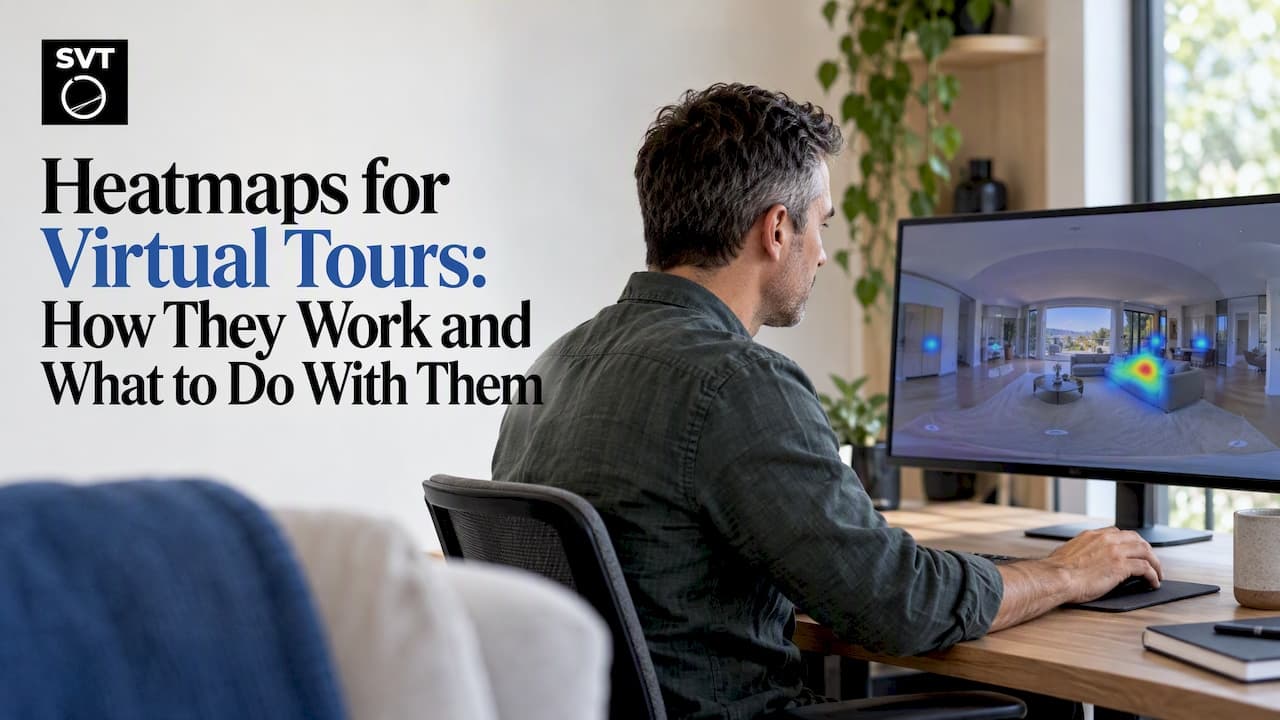
A heatmap for a virtual tour is a color-coded overlay that shows where visitors looked, clicked or lingered inside a 360° scene. Instead of guessing which room, hotspot or exhibit grabs attention, you see it. Most tour tools only give you page-level numbers, so a true in-scene heatmap usually takes a bit of planning: you record where each viewer is facing, aggregate those records, and draw them over the panorama or floor plan. This guide explains how that works, how to read the result without fooling yourself, and what you can do today with the analytics you already have.
TL;DR
- A tour heatmap aggregates many visitors' viewing direction, clicks or movement into a color overlay on a scene or floor plan.
- It can be built without an eye tracker: research has estimated viewed areas with a raycast from the center of the view.
- Read heatmaps as patterns across many sessions, not as proof of one person's intent, and be careful with rainbow color scales.
- Eye and behavior data can be sensitive, so tell visitors what you collect and collect only what you need.
- If your platform has no in-scene heatmap, hotspot click statistics plus event tracking answer most of the same questions.
Table of Contents
- What a heatmap for a virtual tour shows
- How heatmaps are generated from visitor activity
- Ways to add a heatmap to your virtual tour
- Reading the colors: interpretation without self-deception
- How different tours use heatmaps
- Privacy: treat behavior data with care
- Our perspective
- Start with a tour you can measure
- A simple 30-day plan
- FAQ
- Sources
What a heatmap for a virtual tour shows
A website heatmap shows clicks and scrolling on a flat page. A tour heatmap has an extra dimension: the viewer can turn in any direction, so "where did they look" becomes a real question. Depending on how it is built, a tour heatmap can show three different things:
- Gaze or view direction. Which parts of a 360° scene sat in the center of the viewer's screen, and for how long.
- Interaction. Which hotspots, buttons, doors or info icons were clicked, and in what order.
- Movement and density. Which scenes or zones of a venue were visited most, shown as color on a floor plan.
These answer different questions. View direction tells you whether people even noticed the kitchen island. Interaction tells you whether your hotspot design works. Movement tells you which rooms people skip. Decide which question you have before you choose a method.
How heatmaps are generated from visitor activity
The common assumption is that you need an eye tracker. You don't. In a published study on visualizing user behavior in indoor virtual environments, researchers at the University of Udine used a raycast from the scene center to estimate which areas were viewed, and it works without special hardware. In plain terms: the software assumes the middle of the viewport is what the person is looking at, logs which surface that invisible line hits, and adds up the time spent per area.
For a browser-based 360° tour, the workflow looks like this:
- Log the camera. Sample the viewer's yaw and pitch (the horizontal and vertical angle) every fraction of a second, along with the scene ID.
- Log the events. Record hotspot clicks, scene changes, media plays and form submissions with timestamps.
- Aggregate. Combine many sessions per scene so that individual quirks wash out.
- Project. Map each yaw and pitch pair back onto the equirectangular image, then blur the points into a smooth density field.
- Overlay. Render the density as a semi-transparent color layer on the panorama, or total the visits per scene on a floor plan.
The heavy lifting is steps 1 and 3. Drawing the colors is easy once you have clean data.
Can ChatGPT create a heatmap for you?
Not from nothing. A chat assistant has no idea where your visitors looked, so it can only help if you hand it recorded data. It can help you write the script that bins yaw and pitch values or format an export. Researchers are exploring this direction too: one 2025 paper on Explainable XR uses large language models to analyze recorded action data, including 6DoF locations, action times and durations, and context, then generate insights for analysts. The pattern is the same: the data comes first, the AI interprets it afterward.

Ways to add a heatmap to your virtual tour
You have roughly four routes, from least to most effort.
Use the statistics your platform already provides
Before building anything, check what scene views, hotspot clicks and time-on-scene numbers you already have. Our guide to virtual tour analytics metrics covers which numbers reveal engagement. Ranking scenes by views and hotspots by clicks gives you a table version of a heatmap, and for many small projects that is enough to act on.
Send events to your web analytics
If your tour is embedded on a listing or venue page, you can fire an event for each hotspot click and scene change, then look at the funnel. We walk through the setup in our GA4 wiring and verification guide. Page-level heatmap tools can then show clicks around the embed, even though they cannot see inside the panorama.
Export and plot your own data
Research tools show what a custom pipeline can do. The PLUME toolkit for virtual reality, for example, exports heatmaps as .ply point clouds you can inspect in 3D. That suits researchers and teams with a developer. For a typical 360° tour you would plot yaw and pitch counts in a spreadsheet or a short script, then overlay the image.
Use the API for a custom dashboard
Simple Virtual Tour includes statistics and API access, so developers can pull tour data into their own reporting. If you want to experiment with a custom view-density layer, the API and the self-hosted option are where that work would begin.
Reading the colors: interpretation without self-deception
A heatmap is persuasive, which is exactly why it misleads. Follow these habits.
Look for sequences, not just hot spots
For interactive demos, one vendor's documentation explains that heatmaps can show the sequential order in which a viewer engages with buttons, hotspots and target areas. The same idea applies to a property or venue tour. If most visitors click the pool icon first and never reach the floor plan, that is a story about hierarchy, not only popularity.
Be wary of rainbow scales
The Udine researchers caution that rainbow color maps can make sharp transitions look like sharp differences in the data, which invites misreading. A smooth change from 40% to 45% of dwell time can look like a cliff. Prefer a single-hue scale (light to dark) and show the legend with real numbers.
Check the sample size
Ten sessions are an anecdote. Heat from a handful of visits mostly reflects where those few people happened to start. Wait until each scene has a few hundred views before changing a design, or treat the early picture as a hypothesis.
Remember the starting direction
Every scene has a default view. Many viewers never turn away from it, so the heat sits there. A hot default view can mean "interesting" or merely "first thing on screen." Test by rotating the default angle for a week and seeing whether the heat follows.
Common patterns and what to try
| Pattern | Likely meaning | What to try |
|---|---|---|
| Heat only at the default view | Viewers aren't exploring | Add a hotspot or arrow that invites a turn |
| Hotspot icon in a hot zone, few clicks | Icon unclear or not compelling | Redesign the icon, label it, change its position |
| Cold zone around a feature you sell | The feature is easy to miss | Move the default angle or add a callout |
| Heavy exits from one scene | Scene is slow, confusing or dead-ends | Add navigation and compress heavy media |
| One scene never visited | Poor path or hidden link | Link it from the entry scene |
Our hotspot design checklist and the overview of hotspot types and best practices are good next steps once the heatmap tells you which hotspots underperform.
How different tours use heatmaps
Real estate. Agents learn which rooms hold attention and which listings' tours are abandoned at the first scene. If buyers keep lingering on the backyard, lead with it in the listing. Our guide to creating real estate tour hotspots pairs well with this.
Events and venues. Floor-plan heat shows which spaces draw interest. Trade show analytics providers say traffic density and flow data helps operators optimize booth placement and resource management, which is the in-person version of the same logic. For venue tours, see our event space tour guide and layout and sales advice for venues. If you're analyzing website traffic for SEO growth, combining that with in-tour engagement shows which pages bring visitors who actually explore.
Museums and attractions. Visitor density overlays can reveal popular zones and underused areas, an idea venue-analytics vendors such as Pigeon Tech describe for museums and theme parks. In an online exhibition, the equivalent is scene and artwork views.
Education and hospitality. Teachers can see which labeled points students skipped. Hotels can see whether guests open the room scene before the spa scene, then reorder the menu.
Privacy: treat behavior data with care
Gaze and fine-grained behavior data is more revealing than it seems. A 2023 legal analysis of eye-tracking in the United States notes that such data can reveal sensitive information, including biometric identity and physical and mental health conditions, and argues that existing US laws do not squarely cover it. Your tour heatmap, based on camera direction in a browser, is far coarser than headset eye tracking. Still, good practice is simple:
- Aggregate. Store counts per scene and angle bucket, not a replayable record of one person.
- Skip identifiers. Don't attach names, emails or device fingerprints to view-direction logs.
- Say what you collect. Add a line to your privacy notice and your cookie or consent banner if you use analytics.
- Keep only what answers your question, and delete raw logs on a schedule.
If you operate in a state with a consumer privacy law, or you tour minors' spaces such as schools, ask a privacy attorney how it applies to you before launching tracking.
Our perspective

We build Simple Virtual Tour for agents, venues, photographers and teams who want tours that work, not dashboards for their own sake. Our view is that most people don't need a fancy gaze heatmap on day one. They need to know three things: which scenes get opened, which hotspots get clicked, and where people leave. Those are available from statistics and event tracking, and they lead to changes you can make in an afternoon.
Where a deeper heatmap makes sense, control over your data matters. That's why we offer both cloud hosting and a self-hosted version with the full source code: if you want to log view direction on your own server and draw your own overlay through the API, you aren't depending on someone else's roadmap. We also think restraint is a feature. Collect less, aggregate early, and act on patterns that repeat.
— Andrea
Start with a tour you can measure
If you want to try this on a real project, Simple Virtual Tour has a Free Forever plan, and paid cloud plans run from €2.99 per month (XS) to €49.99 per month (XL), with S at €5.99, M at €9.99 and L at €19.99. If you prefer to own the software, the self-hosted CORE license is a $79 one-off purchase, with optional plugins such as the Google Street View plugin at $59 and the A.I. Tools plugin at $39. See the plans and pick the one that fits, or start from our home page.

A simple 30-day plan
- Week 1. Publish the tour and note baseline scene views and hotspot clicks.
- Week 2. Wire up event tracking for hotspot clicks and scene changes in your analytics tool.
- Week 3. Rank scenes and hotspots. Pick one weak spot, such as an ignored hotspot or a scene with many exits, and change only that.
- Week 4. Compare against the baseline. Keep what helped, revert what didn't, and choose the next test.
Changing one thing at a time is what makes the data readable. A heatmap that changes after five edits can't tell you which edit mattered.
FAQ
What is a heatmap used for in a virtual tour?
It shows where visitors look, click or spend time, so you can see which scenes and hotspots attract attention and which get ignored. You use that to reorder scenes, move hotspots and change the default view. It is most useful once you have enough sessions to see stable patterns.
Do I need an eye tracker or VR headset?
No. Research has estimated viewed areas with a raycast from the center of the view, with no special hardware. For a browser tour, logging the camera angle and clicks is enough for a useful approximation of attention.
Can ChatGPT make a heatmap of my tour?
Only if you give it real data. It can help you write a script that turns exported angle and click counts into an overlay, but it cannot know where visitors looked on its own. Treat it as a coding and analysis helper, not a data source.
Are tour heatmaps a privacy problem?
Aggregated view-direction counts are low risk compared with headset eye tracking, but behavior data can still be sensitive in combination with identifiers. Collect only what you need, avoid attaching personal details, and disclose it in your privacy notice. For specific legal questions, consult a privacy attorney.
Sources
- Visualization of User's Behavior in Indoor Virtual Environments (University of Udine)
- Analyzing data in-situ, PLUME
- Tracking static tours data and metrics in Demolytics
- What are You Looking At? Emerging Privacy Concerns With Eye Tracking
- Explainable XR: Understanding User Behaviors of XR Environments
- Indoor wayfinding and visitor analytics for trade shows
- Interactive heat maps for museums, zoos and theme parks