

Yes, you can lock down a virtual tour with a password. Switch the tour's access setting to password mode, set a strong password, and share the link with viewers directly. For sensitive listings, pair that password with expiring links or multi-factor authentication (MFA) since a shared static password alone is only a starting point, not a full lock.
TL;DR:
- Using a password for virtual tours provides basic protection, but it becomes less secure if shared via group chats or emails, especially for high-value listings.
- Advanced access controls like expiring links and single-use tokens significantly reduce unauthorized re-sharing, making them essential for sensitive or broad distributions.
- Protecting tours with MFA, encrypted connections, and audit logs strengthens security, particularly when handling private or high-value property previews.
- Always test the share link and password prompt in multiple browsers and devices, and provide clear instructions to viewers to prevent access issues.
- For recurring private tours, consider self-hosting and integrating viewer consent and access logs into a central system for better control and record keeping.
Table of Contents
- How Do You Set Up Password Protected Virtual Tours?
- What Are the Advanced Access Options Beyond a Password?
- What Security Best Practices Protect Password-Protected Tours?
- What Should You Send Viewers, and How Do You Fix Access Problems?
- How Does Simple Virtual Tour Handle Private, Password-Protected Tours?
- What I've Learned Building Private Tours for Clients
- Try Password Protected Virtual Tours With Simple Virtual Tour
- Sources
How Do You Set Up Password Protected Virtual Tours?
Most tour builders handle this the same general way, whether you're using a dedicated 360° platform or a broader media hosting tool. The steps below apply across the board, with small naming differences from one dashboard to the next.
- Open your project's publish or sharing settings. This is usually a tab labeled "Publish," "Share," or "Access" inside the tour editor.
- Switch the access mode to Password. Many hosting platforms build a "Password Protected" privacy mode directly into publish settings, so this is rarely a hidden feature. It requires viewers to type in a password before the tour loads.
- Enter a strong password and save it. Most platforms enforce a minimum length for passwords to ensure adequate security, so avoid anything too short or guessable.
- Copy the share link and test it yourself. Open it in a private or incognito browser window to confirm the password prompt appears and the tour loads correctly on the other side.
- Check embed behavior if you're placing the tour on a website. Some embed codes bypass the password prompt entirely, so verify the embedded version still asks for credentials before it displays anything.
A few operational notes matter here. If you need to change or remove the password later, that setting usually lives in the same publish panel where you created it. But be careful. Vendor support pages warn that some platforms cannot recover a forgotten password. The only fix is resetting it and redistributing the new one to your viewers.
When you send the link out, include an expiration date in your message even if the platform itself doesn't enforce one automatically. Something as simple as "This link and password work through Friday" keeps everyone on the same page and gives you a natural cutoff for revoking access later.
What Are the Advanced Access Options Beyond a Password?
A shared password is convenient, but it has a weakness: once it's typed into a group chat or forwarded email, you've lost control of who has it. Stronger controls close that gap.
- Expiring links shut off access automatically after a set window, which fits sensitive previews or a showing that only needs to stay open for a few days.
- Single-use tokens work like a one-session code. Once a viewer opens the tour, that specific token can't be reused, which stops casual re-sharing dead in its tracks.
- Viewer restrictions let you require a login, whitelist specific email addresses or company domains, or in some cases restrict access by IP range.
- Embed controls matter because protected tours don't always behave the same way when embedded on a third-party page as they do through a direct share link. Some platforms let you block embedding entirely or require the password prompt inside the embed itself.
Platforms and forum discussions increasingly reference expiring access tokens and single-use session codes as meaningfully stronger controls than a static password alone.
Pro Tip: Match the method to the audience size. A password works fine for a dozen invited buyers. Once you're sharing with a broader list, or the property itself is high value, expiring links and single-use tokens earn their extra setup time.
What Security Best Practices Protect Password-Protected Tours?
A password is a lock. Whether that lock actually holds depends on the habits around it. Treat the password itself the way you'd treat any account credential: give it real length, avoid reusing the same one across multiple listings, and rotate it whenever a showing period ends.
For higher-value or more private tours, add a second layer of verification. That might mean MFA, an email confirmation step, or in rare cases a basic ID check before granting access. Security guidance for virtual tour platforms consistently recommends multi-factor authentication alongside audit logs and encryption as core layers, and MFA is known to block a large majority of automated account attacks industry-wide.
Beyond authentication, a few operational habits round out a real security posture:
- Keep an audit log of who viewed the tour and when, especially for anything recorded live.
- Capture and store viewer consent whenever a session is recorded, with a timestamp.
- Confirm the hosting connection runs over HTTPS and that any API calls the platform makes are encrypted in transit.
- Consider a self-hosted deployment when you need full control over where that data lives.
For tactical mitigation on higher-risk listings, watermark recorded walkthroughs, mask the property owner's contact details inside the tour, and limit how much interior detail gets exposed to unverified viewers.
What Should You Send Viewers, and How Do You Fix Access Problems?
The message you send alongside a protected tour link matters almost as much as the setup itself. A clean sharing note includes the link, the password, the expiration window, and one line of instruction: open in a standard browser and allow cookies if prompted.
Before that message goes out, run through a short test sequence:
- Open the link in an incognito or private window to confirm the password prompt fires correctly.
- Test on both mobile and desktop, since embed behavior sometimes differs between the two.
- If the tour lives on a website via embed, test that version separately from the direct share link.
Access problems tend to fall into a small handful of buckets. A viewer who forgot the password needs a reset, since some platforms have no recovery option once it's set. An embed that isn't prompting for a password at all usually means the direct link works better as a fallback. Cookie or cache issues typically clear up with a simple reload or a manual cache clear on the viewer's end. Testing in an incognito window ahead of time catches most of these problems before a client ever sees them.
For anyone who genuinely can't get the interactive version to load, keep a fallback ready: a short live walkthrough call or a handful of static images covers the gap without stalling the sale.
How Does Simple Virtual Tour Handle Private, Password-Protected Tours?
Simple Virtual Tour builds password access directly into its publish settings, so locking a tour down doesn't require a separate plugin or workaround. Beyond the password layer, the platform gives you a few structural choices that matter for anyone handling private previews regularly:
- Password-gated publish settings for quick, per-tour access control.
- A self-hosted deployment option for teams that need full data control and their own audit trail for who accessed what.
- Live session hosting with role-based permissions, useful when a private showing needs a real-time guide rather than a self-service walkthrough.
Cloud-hosted works well when convenience matters more than custody of the data. Self-hosted makes more sense when auditability and control are the priority, particularly for agencies handling recurring private listings.
Pro Tip: Store consent logs and expiry dates in your CRM alongside the tour link itself, not in a separate spreadsheet. When a client asks six months later who viewed a recorded walkthrough, you want that answer in one place.

What I've Learned Building Private Tours for Clients
Most requests follow a pattern: a broker wants a private preview before a listing goes public, or an event planner needs access to close automatically after the event ends. Password access alone answers the first case fine. The second almost always calls for an expiring link.
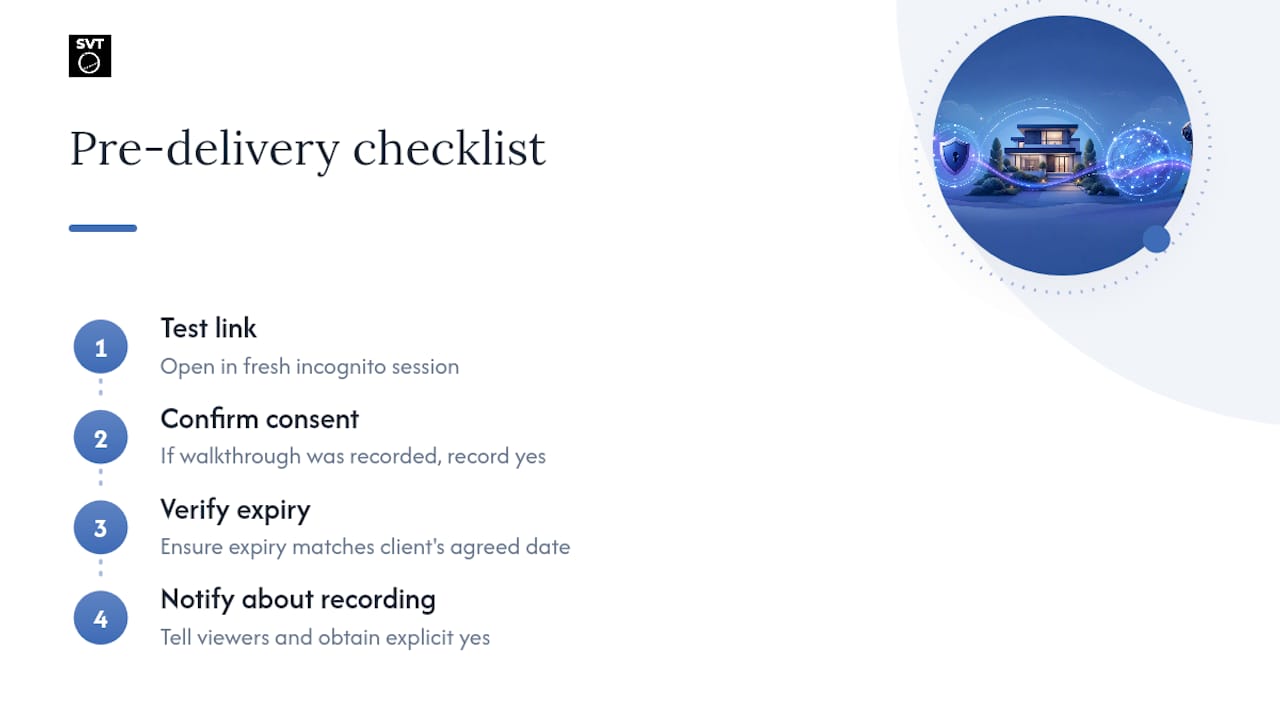
My working checklist before delivery: test the link in a fresh incognito session, confirm consent is recorded if the session was live, and double check the expiry date actually matches what the client agreed to verbally. That last step gets skipped more often than it should.
If you're recording a live walkthrough, say so plainly and get a yes before you hit record.
— Andrea
Try Password Protected Virtual Tours With Simple Virtual Tour
Simple Virtual Tour software offers password access without a plugin, plus an option to self-host for those who want more control over access and data. Live sessions with role-based permissions help run guided private showings rather than just self-service experiences, consolidating management in one interface.
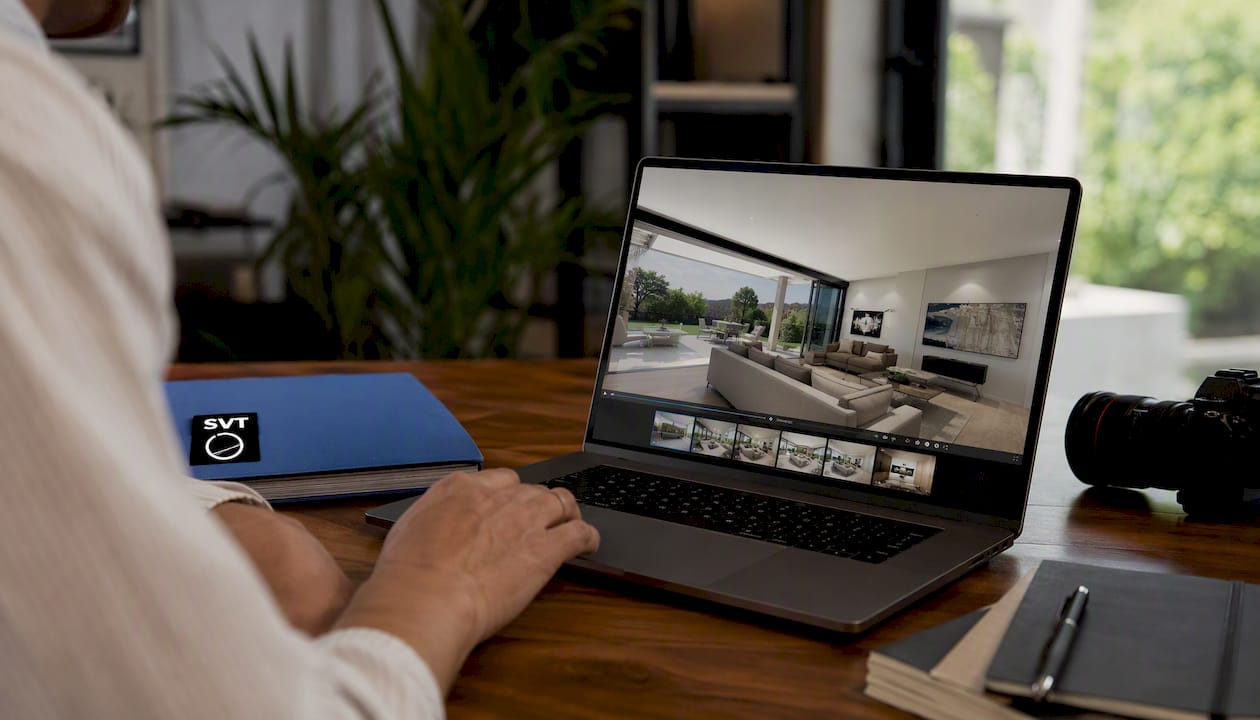
If you're managing private previews for buyers, exclusive event access, or listings that simply shouldn't be public yet, start a free trial or request a demo and set up your first password-protected tour today.