

Most virtual tour platforms use a five-tier role structure: Owner, Admin, Publisher, Editor, and Viewer. The safest setup follows least privilege: give each person only the access their job requires, and separate the people who build content from the people who publish it. If you need to lock down sensitive spaces inside a tour, look for a platform with room-level protection and gated access, since not every plan includes it.
TL;DR:
- Assign roles based on least privilege, starting users at the lowest necessary level and upgrading only when needed to minimize risk.
- Use a separate publisher role or review process to prevent editors from publishing content without oversight.
- Apply room-level protection modes like passcodes or lead forms to customize access and maximize privacy within a single tour.
- Maintain a clear, up-to-date record of temporary role assignments and promptly update or revoke access upon staff changes.
- Regularly audit user roles and activities with detailed logs to detect role drift, unauthorized changes, or security breaches early.
Table of Contents
- Understanding Virtual Tour User Roles and Access Tiers
- What Each Role Can and Cannot Do
- Viewer Access and Room-Level Protection Explained
- Best Practices for Assigning Virtual Tour User Roles
- Managing Multi-User Editing Without Version Conflicts
- How to Invite, Edit, Remove, and Reset User Access
- Building Custom Roles Beyond the Standard Tiers
- Tracking User Activity With Audit Logs
- Handling Temporary Roles and Role Transitions
- Security and Compliance Considerations by Role
- What Most Teams Get Wrong About Role Assignment
- Try Simple Virtual Tour's Role and Protection Features
- Sources
Understanding Virtual Tour User Roles and Access Tiers
Virtual tour user roles work like a ladder, with account control at the top and read-only access at the bottom. Each rung down trades power for safety: the fewer permissions someone holds, the less damage a mistake or a compromised login can do. This is why documented role structures for tour-building platforms consistently separate account management from content work.
Here's the standard taxonomy you'll find across most tools:
- Owner — controls billing, account settings, and can transfer ownership, similar to how user roles are managed in Users & Permissions - Virtual Phone System - Talkroute.
- Admin — manages users and permissions, often with full editing and publishing rights.
- Publisher — pushes finished content live without touching billing or user management.
- Editor — builds and edits tours but can't publish or manage other users.
- Viewer — views the finished tour, sometimes gated behind a passcode or form.
This tiering exists for two reasons at once. It protects the account from accidental or malicious damage, and it lets teams work in parallel: photographers can upload assets, editors can build hotspots, and a publisher can review everything before it goes live, all without anyone touching the credit card on file.
What Each Role Can and Cannot Do
Knowing the role names only helps if you know exactly where the permission line sits for each one. Here's what to expect when you assign virtual tour user roles on most platforms:
- Owner. Full control of the account: billing, subscription changes, domain settings, and the ability to transfer ownership to someone else. Owners can also revoke any other role instantly, which is why this role should sit with as few people as possible.
- Admin. Invites and removes users, resets passwords, and adjusts permissions. On many platforms, admins also inherit full edit and publish rights, functioning as a deputy owner without billing access.
- Publisher. Can push edited rooms and tours live, but has no reach into account settings or user management. This role exists specifically to separate "who built it" from "who approved it going public."
- Editor. Creates and modifies tour content, including hotspot placement and scene linking, but cannot publish changes or touch user accounts. Editors need broad creative access without broad account risk.
- Viewer. Read-only. Viewer access itself has three flavors, covered in the next section: fully public, passcode-locked, or gated behind a lead form.
This five-role split mirrors what Tour Builder's own documentation describes: owners and admins handle users and account settings, editors create, and publishers push work live independently of the account layer.
Pro Tip: If your platform doesn't offer a separate Publisher role, simulate one by requiring a second Admin review before any Editor's work goes live. It costs a few minutes and catches most embarrassing mistakes before a client sees them.
Viewer Access and Room-Level Protection Explained
Not every viewer should see everything, and not every room in a tour needs the same lock. Viewer access on most platforms falls into three patterns, each with a different tradeoff:
- Public. No barrier at all. Best for marketing tours meant to spread freely.
- Passcode. A shared code gates the tour. Good for private client previews where you don't need to know who specifically viewed it.
- Lead-capture or gated. Visitors submit a name and email (or sign up through an integration) before entering. This turns a tour into a lead-generation instrument rather than just a showcase.
Simple Virtual Tour supports four distinct room protection modes: None, Passcode, Leads, and Mailchimp signup. Global protection settings can apply the same rule across multiple rooms at once, while individual rooms can override that setting when one space needs tighter control than the rest of the tour.
Mixing public and gated rooms inside a single tour is more common than most new users expect. A real estate agent might leave the living room and kitchen open to anyone, then gate the floor plan or pricing sheet behind a lead form, turning casual browsers into contact records without a separate landing page.
Best Practices for Assigning Virtual Tour User Roles
Getting roles right on day one saves you from untangling access problems six months later. A few rules cover most of the risk:
- Default to least privilege. Start every new user at the lowest role that lets them do their job, then upgrade only if they hit a wall. It's far easier to grant one more permission than to claw one back after a mistake.
- Separate building from publishing. Let editors build freely, but require a publisher or admin to review and push content live. This creates a natural QA checkpoint, which documentation on role structuring consistently recommends for content-heavy accounts.
- Run an onboarding and offboarding checklist. New hires get roles assigned the day they start; departing team members get access revoked the day they leave, not "sometime this week."
- Use consistent naming and grouping. Group users by project or property so a quick glance at the user list tells you who touches what, instead of hunting through generic account names.
- Audit roles monthly. A short review catches the contractor who still has editor access three projects after their contract ended.
Pro Tip: Keep a simple role matrix, just a spreadsheet listing every user, their role, and the date it was assigned. It takes five minutes to build and saves hours the first time you need to answer "who changed this?"
Managing Multi-User Editing Without Version Conflicts
Give five editors access to the same tour and you'll eventually run into two people editing the same room at once. Collaborative locking indicators solve this by showing, in real time, which room another user currently has open, similar to the presence markers you'd see in a shared document. Multi-user editing support in modern tour builders exists specifically to prevent one editor's save from silently overwriting another's work.
A few habits keep this friction-free:
- Check who's editing before you open a room, not after you've made changes.
- Work in short check-in, check-out windows rather than holding a room open all day.
- Batch your edits into smaller sessions so conflicts, when they happen, are easy to resolve.
- Reserve Admin-level access for people who touch billing or third-party integrations, keeping everyone else focused purely on content.
That last point matters more than it sounds. Builders need room to work, but the moment too many people hold Admin rights, you've multiplied the number of ways a Mailchimp key or a billing setting can get changed by accident.
How to Invite, Edit, Remove, and Reset User Access
Managing users day-to-day is mostly a four-step cycle, and getting the sequence right prevents most access headaches before they start.
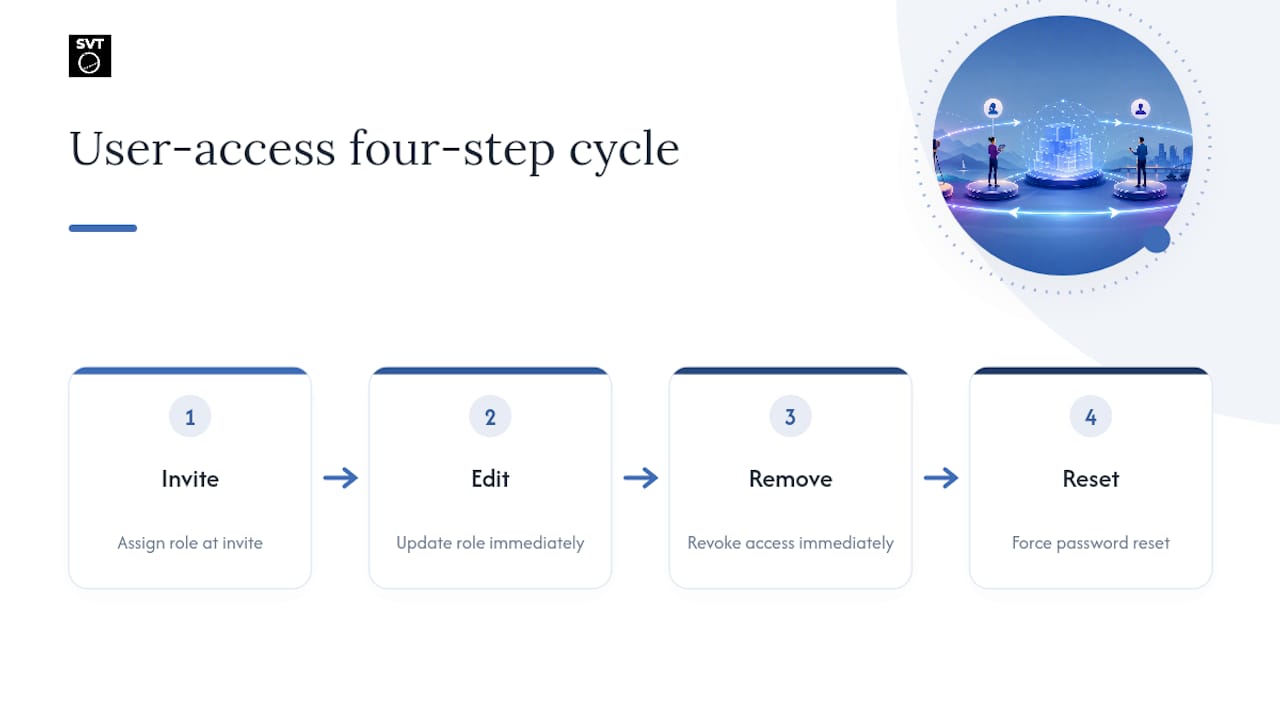
Inviting a user typically means entering their email address and selecting a role at the same time. Assign the role at invitation, not after. A user who joins without a defined role tends to default to broader access than they need, simply because nobody remembered to lock it down later.
Editing a user's role should happen the moment their job changes, not weeks after. If a photographer moves from shooting assets to managing the whole account, their permissions should reflect that the same day, both to give them the access they now need and to avoid a stale under-permissioned account slowing down real work.
Removing a user needs to happen immediately when someone leaves a project or the company. Delayed removal is one of the most common ways former contractors retain access to tours long after their engagement ends.
Resetting a password is usually self-service, but Admins and Owners should retain the ability to force a reset on any account. This matters most when a device is lost or a login is suspected to be compromised. A quick forced reset closes that door without waiting for the user to notice something's wrong.
Keep this cycle simple and consistent, and role management stops being a recurring fire drill. The moment invite, edit, remove, and reset all follow the same predictable steps, new team members onboard faster and departures stop leaving loose ends.
Building Custom Roles Beyond the Standard Tiers
The five standard virtual tour user roles cover most teams, but not all of them. A museum might need a role for docents who can update exhibit descriptions but never touch pricing or layout. A real estate brokerage might want a role for photographers who upload raw 360° assets but never see client contact data collected through gated rooms.
Custom roles solve this by letting you combine permissions à la carte instead of accepting a fixed bundle. Look for a platform that lets you toggle individual capabilities, room access, publishing rights, user management, billing visibility, rather than forcing every user into one of five preset boxes. Platforms with more elaborate role-based access control, such as the multi-tier systems described in enterprise access-level documentation, show how far this can go: Organization Admin, Group Admin, Creator, Standard User, and Viewer each carry a distinct, narrow permission set rather than a one-size-fits-all label.
Before creating a custom role, ask what the person genuinely needs to do their job, not what would be convenient to grant. A custom role that's really just "Admin with a different name" defeats the purpose. The value of customization is precision: narrowing access down to exactly the tasks someone performs, so a compromised account or an honest mistake has the smallest possible blast radius.
If your platform doesn't support custom roles, the standard five-tier structure combined with strict room-level gating covers most use cases without added complexity.
Tracking User Activity With Audit Logs
An audit log is your record of who did what and when, and it's the difference between guessing and knowing when something goes wrong with a tour. Every meaningful action, publishing a room, editing content, inviting a user, changing a passcode, should leave a timestamped trail tied to a specific account.
This matters most in three situations. First, when a published tour suddenly shows content nobody remembers approving, a log tells you which Editor or Publisher made the change and when. Second, when a lead-capture room stops collecting signups, a log can confirm whether someone accidentally switched the protection mode. Third, during a security review, a clean audit trail proves that access followed your intended role structure rather than drifting over time.
Not every platform surfaces this the same way. Some show a simple activity feed; others break it down by role, letting you filter for every action an Editor took versus every action an Admin took. If compliance matters to your organization, that filtering capability is worth checking before you commit to a platform, because reconstructing "who changed this" after the fact from a flat, unsorted log is far slower than pulling a role-filtered report.
Treat the audit log as a habit, not a fallback. A monthly glance at recent activity catches role drift, unexpected publishing, or a forgotten contractor account long before it becomes a real problem.
Handling Temporary Roles and Role Transitions
Not every user needs permanent access. A freelance photographer might need Editor rights for exactly the two weeks they're shooting a property. A junior team member covering for a publisher on vacation might need Publisher access for a single week. Temporary role assignment handles both cases without forcing you to choose between "too much access forever" or "constant manual re-invites."
The cleanest approach sets an end date at the same moment you grant the elevated role, rather than trusting yourself to remember to revoke it later. If your platform doesn't support automatic expiration, a calendar reminder tied to the grant date is a reasonable substitute, just don't skip it.
Role transitions, permanent changes rather than temporary bumps, deserve the same discipline as onboarding. When someone moves from Editor to Admin, or steps down from Owner to a lesser role after leaving day-to-day operations, update the role the same day the change happens. A stale role, whether it's too permissive or too restrictive, tends to cause friction exactly when speed matters most: right before a launch, right after a staffing change, right when a client needs an urgent update.
Document every temporary grant and every transition in the same role matrix you use for standard assignments. A one-line note, who, what role, what dates, keeps temporary access from quietly becoming permanent simply because nobody remembered to remove it.
Security and Compliance Considerations by Role
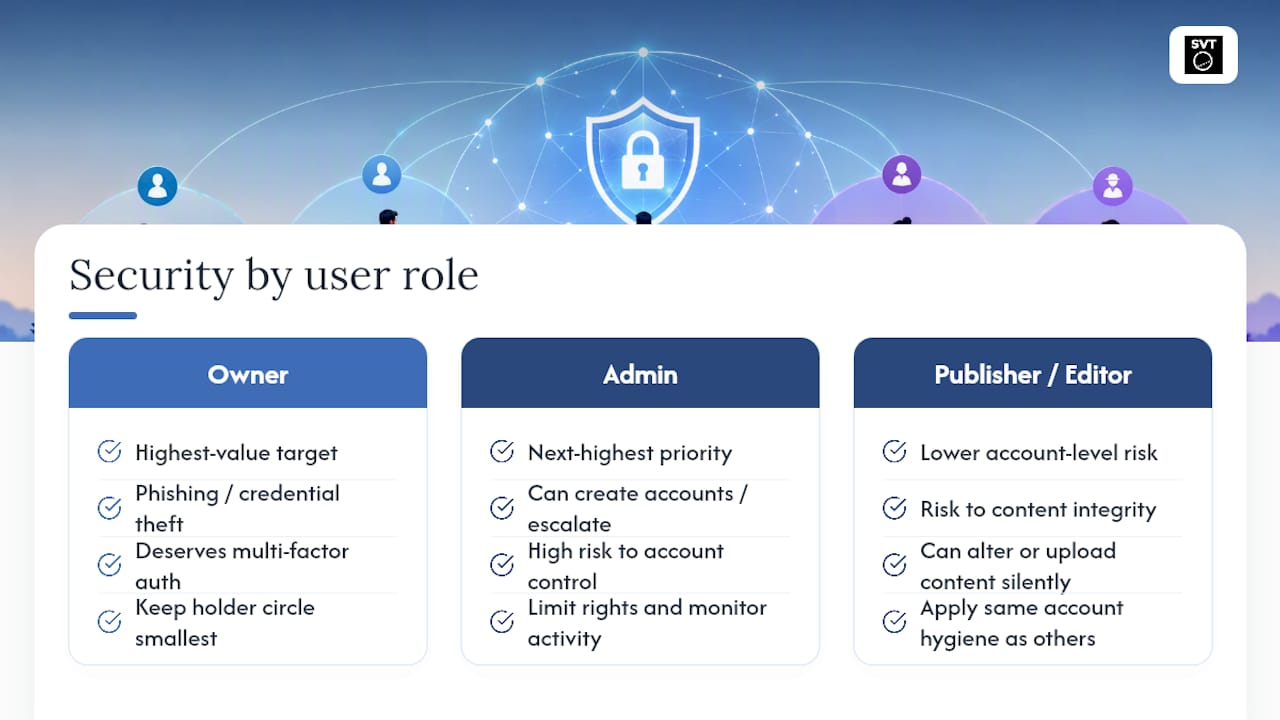
Different virtual tour user roles carry genuinely different risk profiles, and treating them all the same is where most security gaps start. An Owner account, with billing and full account control, is the highest-value target for a phishing attempt or credential theft; it deserves multi-factor authentication and the smallest possible circle of people holding it. An Admin account, with user management rights, is the next highest priority, since a compromised Admin can create new accounts or escalate other users' permissions.
Publisher and Editor accounts carry lower account-level risk but still matter for content integrity. A compromised Editor account could quietly alter a published tour or upload inappropriate content before anyone notices, particularly on tours with heavy technical asset workflows where multiple contributors touch raw files.
Compliance considerations shift depending on what a gated room collects. Any room using a lead-capture form or an email signup integration is gathering personal information, which means basic consent and data-handling practices apply just as they would on a standalone landing page. If your organization operates under specific data protection obligations, treat every gated room the same way you'd treat a signup form on your main website, not as an exception because it happens to live inside a tour.
The practical rule: match the security controls to the actual damage a compromised account in that role could do, not to how senior the person happens to be. A junior team member with Publisher access needs the same account hygiene as a senior one, because the role, not the title, determines the risk.
What Most Teams Get Wrong About Role Assignment
Most teams treat virtual tour user roles as a one-time setup task, something you configure during onboarding and never revisit. That's backwards. Role assignment is closer to a living workflow tool than a security checkbox, and the teams that get the most value from a tour platform are the ones that keep adjusting who can do what as projects, staffing, and priorities shift.
The bigger misconception is that tighter permissions slow teams down. In practice, the opposite tends to happen. A clear separation between Editor and Publisher roles removes ambiguity about who's allowed to make a room go live, which resolves the "wait, did you already publish that?" confusion that eats up more time than any permission form. Framing role structure as a collaborative workflow tool rather than a lock and key changes how teams actually use it.
The room-level gating options built into platforms like Simple Virtual Tour reinforce this: the ability to run None, Passcode, Leads, or Mailchimp protection on individual rooms means a single tour can serve marketing, private previews, and lead generation simultaneously, without spinning up three separate builds. Analytics tied to live sessions and gated rooms turn that setup into a feedback loop, showing which spaces actually convert visitors into leads, which is a level of quality assurance a static walkthrough never gave anyone.
— Andrea
Try Simple Virtual Tour's Role and Protection Features
Simple Virtual Tour builds the entire role model covered here directly into its backend: Owner, Admin, Editor, and Viewer tiers, plus four room protection modes, None, Passcode, Leads, and Mailchimp signup, applied globally or room by room. That means you can gate a floor plan behind a lead form while leaving the living room walkthrough public, all inside one tour, without juggling separate accounts or third-party gating tools.
You choose how it runs: cloud-hosted for zero server maintenance, or self-hosted if you want full control over where your data lives and want to cut recurring costs over time. Live session hosting lets a publisher walk a client through a tour in real time before anything goes public, and the built-in Mailchimp integration turns gated rooms into an actual list-building tool instead of just a wall. Ready to see the role structure in action? Start with Simple Virtual Tour and set up your first protected room in minutes, or browse the full feature set before you commit.
Sources
- Tour Builder User Roles
- How to protect a Room?
- Exploring Access Levels, User Roles, and Sharing Permissions