

Virtual tour accessibility features setup is the process of configuring interactive 360° tours to meet WCAG 2.1 Level AA and ADA compliance standards, ensuring every visitor, including those with disabilities, can fully engage with your content. Web developers, designers, and content managers who build virtual tours for real estate, tourism, museums, and education must treat accessibility as a core design requirement, not a post-launch patch. This guide covers the essential features, governing standards, step-by-step implementation, and platform comparisons you need to build inclusive virtual tours from the ground up, using tools like Simple Virtual Tour, W3C/WAI guidelines, and proven real-world examples.
What are the essential accessibility features for virtual tours?
Accessible virtual tours require multiple overlapping feature layers. No single feature covers every disability type, so your setup must address visual, auditory, motor, and cognitive needs simultaneously.
The core features every virtual tour needs include:
- Synchronized captions with speaker identification for all prerecorded video content. W3C/WAI guidance requires editing auto-generated captions for accuracy and time synchronization. Auto-generated captions alone fail this standard consistently.
- Full keyboard navigability for every interactive element, including hotspots, menus, and media controls. ADA.gov confirms that all controls must be reachable and operable without a mouse. Visible focus indicators must accompany every focusable element.
- Audio descriptions for scenes where critical information is visual only. Captions alone do not suffice when key information is visual. A separate audio track or text alternative must describe what the camera shows.
- Sign language video integration, such as British Sign Language (BSL) videos embedded per scene. The Deaf Academy's virtual tour demonstrates that scene-specific BSL videos must align with navigation flow, not appear as a single generic introduction.
- Accessibility widgets providing high contrast mode, scalable fonts, and navigation mode toggles. Greater Anglia's station tours show that spoken scene guidance combined with widgets significantly expands usability for diverse disabilities.
- Transcripts for all audio and video content, available as downloadable or on-page text.
Pro Tip: Build your feature checklist against WCAG 2.1 Level AA success criteria before writing a single line of code. Retrofitting accessibility into a finished tour costs far more time than designing it in from the start.
Which standards and guidelines should guide your setup process?
Three frameworks govern accessible virtual tour development in 2026. Understanding each one prevents compliance gaps.
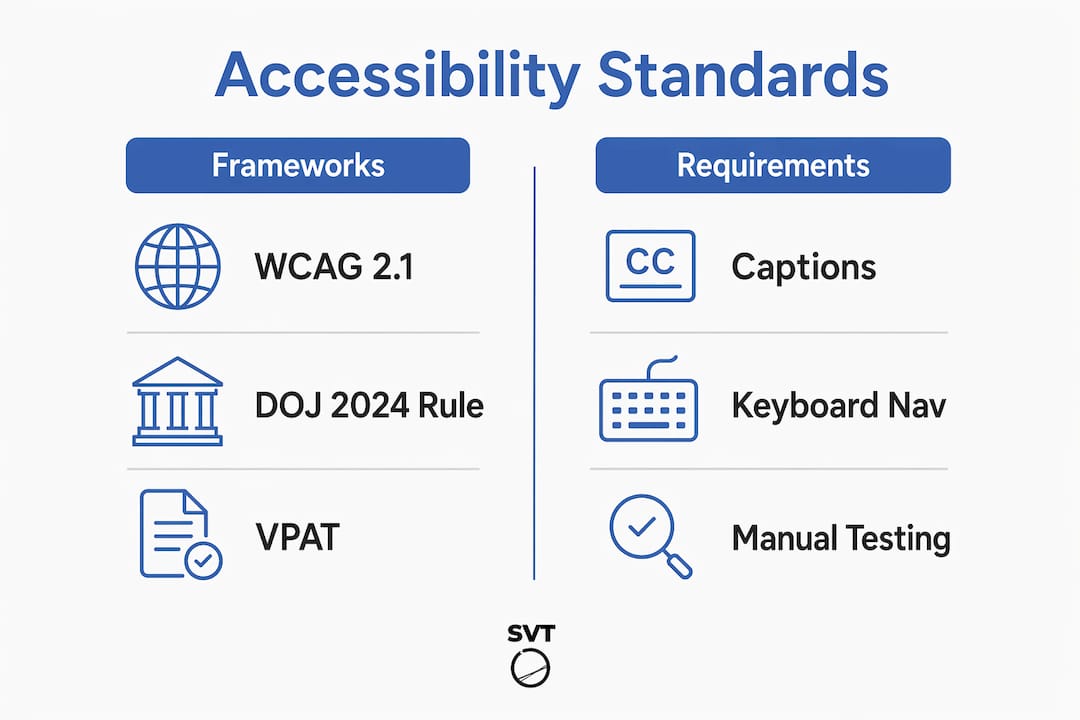
| Framework | Scope | Key Requirement |
|---|---|---|
| WCAG 2.1 Level AA | Global web content standard | Captions, keyboard access, contrast ratios, focus order |
| ADA Web Guidance | U.S. public and commercial sites | Keyboard operability, synchronized captions, accessible multimedia |
| DOJ 2024 Rule | U.S. public-sector web and mobile | Full WCAG 2.1 Level AA compliance for government digital content |
The DOJ 2024 rule requires public-sector web content and mobile apps to comply with WCAG 2.1 Level AA. This rule directly affects tourism boards, public museums, and government-funded virtual tour projects. Private-sector developers should treat it as the minimum bar, not a ceiling.
Automated accessibility scanners catch roughly 30–40% of WCAG failures. Manual testing with screen readers like NVDA, JAWS, and VoiceOver, combined with keyboard-only walkthroughs, uncovers the high-severity issues that automated tools miss. Ongoing testing with assistive technology users is the recommended practice for continuous compliance.
When procuring third-party virtual tour technology, require vendors to supply a Voluntary Product Accessibility Template (VPAT). A VPAT documents which WCAG criteria a product meets, partially meets, or does not meet. Even claimed WCAG-compliant products can carry accessibility gaps if not tested in your specific configured environment.
Pro Tip: Schedule a quarterly accessibility audit after launch. Tour content changes, such as new scenes or updated videos, can break previously passing criteria if no governance process exists.
How to implement accessibility features step by step in your virtual tour setup
A structured workflow prevents missed requirements and reduces rework. Follow these steps in order.
-
Audit your content inventory. List every video, audio clip, image, and interactive hotspot in your tour. Assign an accessibility requirement to each item: captions, audio description, transcript, or keyboard control.
-
Generate and edit captions. Use a captioning tool to produce a first-draft caption file, then manually review every line for accuracy, timing, and speaker identification. Caption accuracy is a testable acceptance criterion for any embedded or hosted tour video. Publish only after a human editor has reviewed the full file.
-
Implement keyboard navigation. Map the tab order across your entire tour interface. Every hotspot, menu item, and media control must receive keyboard focus in a logical sequence. Test this by unplugging your mouse and navigating the complete tour using only Tab, Enter, and arrow keys.
-
Embed scene-specific sensory alternatives. For each scene, add an audio description track and, where your audience includes Deaf users, embed a BSL or ASL video. Generic sign language introductions placed only at the tour entry point do not meet the standard. Each scene requires its own aligned alternative.
-
Configure the accessibility widget. Add a persistent widget that gives users control over:
- High contrast mode
- Font size scaling
- Reduced motion settings
- Navigation mode (click vs. keyboard vs. touch)
-
Run a keyboard-only walkthrough. Complete the entire tour without a mouse. Document every point where focus is lost, trapped, or invisible. Fix all issues before moving to screen reader testing.
-
Test with screen readers. Use NVDA on Windows and VoiceOver on macOS and iOS. Virtual tour 360° interaction layers contain dynamic states that screen readers handle inconsistently. Test every hotspot activation, media control, and modal dialog.
-
Collect user feedback. Invite testers with disabilities to complete defined tasks in your tour. Their feedback surfaces real-world barriers that technical testing misses. Incorporate findings before launch.
For teams building accessible onboarding content like BSL intro videos and navigation instructions, planning that layer during step 4 saves significant revision time later.
Common challenges and troubleshooting tips for virtual tour accessibility setup
Even well-planned tours encounter recurring problems. Knowing these pitfalls in advance lets you address them before they reach users.
- Auto-generated captions published without editing. This is the most common failure. Auto-generated captions average significant error rates on proper nouns, technical terms, and accented speech. Always treat auto-captions as a first draft, never a final product.
- Keyboard traps in media players. Embedded video players, panorama viewers, and modal dialogs frequently trap keyboard focus. Users cannot exit without a mouse. Test every interactive component for focus trapping and add a visible keyboard escape route.
- Audio descriptions that duplicate captions. Audio descriptions must describe visual information not conveyed in the audio track. Writing descriptions that simply repeat spoken dialogue wastes the channel and confuses users who rely on both.
- Broken accessibility after content updates. Adding a new scene, replacing a video, or updating a hotspot label can break previously passing criteria. Treat every content update as a new accessibility review trigger.
- BSL videos misaligned with navigation flow. A single BSL introduction video at the tour entry point does not serve Deaf users navigating deep into the tour. BSL videos must be embedded at each navigation stage, aligned with the specific scene content a user encounters.
Pro Tip: Create a regression test checklist covering your ten most critical accessibility criteria. Run it after every content update, not just at launch. A 15-minute checklist review prevents hours of remediation.
The Museums Association's review of a museum 360° virtual tour found that layered orientation content across multiple sensory channels including BSL intro videos, audio instructions, and per-stop audio descriptions produced the most inclusive user experience. That layered approach is the model to replicate.
How do popular virtual tour platforms compare on accessibility features?
Platform choice directly affects how much accessibility work you handle manually versus what the software provides out of the box.
| Platform | Caption support | Keyboard navigation | Accessibility widget | VPAT available |
|---|---|---|---|---|
| Simple Virtual Tour | Configurable | Supported | Configurable | Contact vendor |
| 3DVista | Partial | Partial | Limited | Not publicly listed |
| Generic iframe embeds | Dependent on source | Variable | None | Not applicable |
Simple Virtual Tour supports over 1,400 users and offers an intuitive backend that lets content managers configure virtual tour inclusive features without deep technical expertise. Its dual deployment model, cloud-hosted or self-hosted, gives development teams control over the environment where accessibility testing occurs. That control matters because accessibility gaps often appear in deployment-specific configurations, not in the base software.
When evaluating any platform, require the vendor to demonstrate keyboard navigation through a live tour, not just describe it in documentation. Procurement practices should explicitly require accessibility documentation and real-world testing evidence. A vendor who cannot demonstrate keyboard operability in a live session is a compliance risk.
For teams working on mobile virtual tour implementations, platform accessibility on touch interfaces requires separate testing. Touch targets, swipe navigation, and mobile screen reader behavior differ significantly from desktop behavior.
Platforms with built-in accessible navigation design reduce the custom development burden. Evaluate whether the platform's navigation structure supports logical focus order before committing to a build.
Key Takeaways
Effective virtual tour accessibility features setup requires layered implementation of captions, keyboard navigation, sensory alternatives, and user controls, all validated against WCAG 2.1 Level AA before and after launch.
| Point | Details |
|---|---|
| Start with standards | Align your feature checklist to WCAG 2.1 Level AA and ADA requirements before building. |
| Layer sensory alternatives | Combine captions, audio descriptions, and scene-specific BSL videos for full inclusivity. |
| Test beyond automation | Manual keyboard walkthroughs and screen reader testing uncover issues automated scans miss. |
| Govern post-launch | Run an accessibility review after every content update, not only at initial launch. |
| Vet your platform | Require vendors to demonstrate live keyboard navigation and supply VPAT documentation. |
Accessibility setup is a design decision, not a checkbox
I have reviewed virtual tour projects where accessibility was treated as a final QA step, and the pattern is consistent. Teams spend three times as long fixing accessibility problems after build as they would have spent designing for it upfront. The cost is not just time. It is user trust.
The most effective virtual tours I have seen, including the museum 360° tour highlighted by the Museums Association, built accessibility into the content brief. BSL videos were scripted alongside the narration. Audio descriptions were written at the same time as scene copy. The result was a tour that felt coherent to every user, not a standard tour with accessibility features bolted on.
My strongest recommendation is to involve users with disabilities in your testing process before launch, not after. Their feedback identifies barriers that no automated tool or internal review will catch. A 30-minute session with a screen reader user will teach you more about your tour's real accessibility than a full automated scan report.
Platforms like Simple Virtual Tour make the technical configuration manageable. The harder work is the content planning. Invest there first.
— Andrea
Simple Virtual Tour makes accessible tour creation practical
Building an inclusive virtual tour does not require a team of accessibility specialists if your platform handles the technical foundation well.
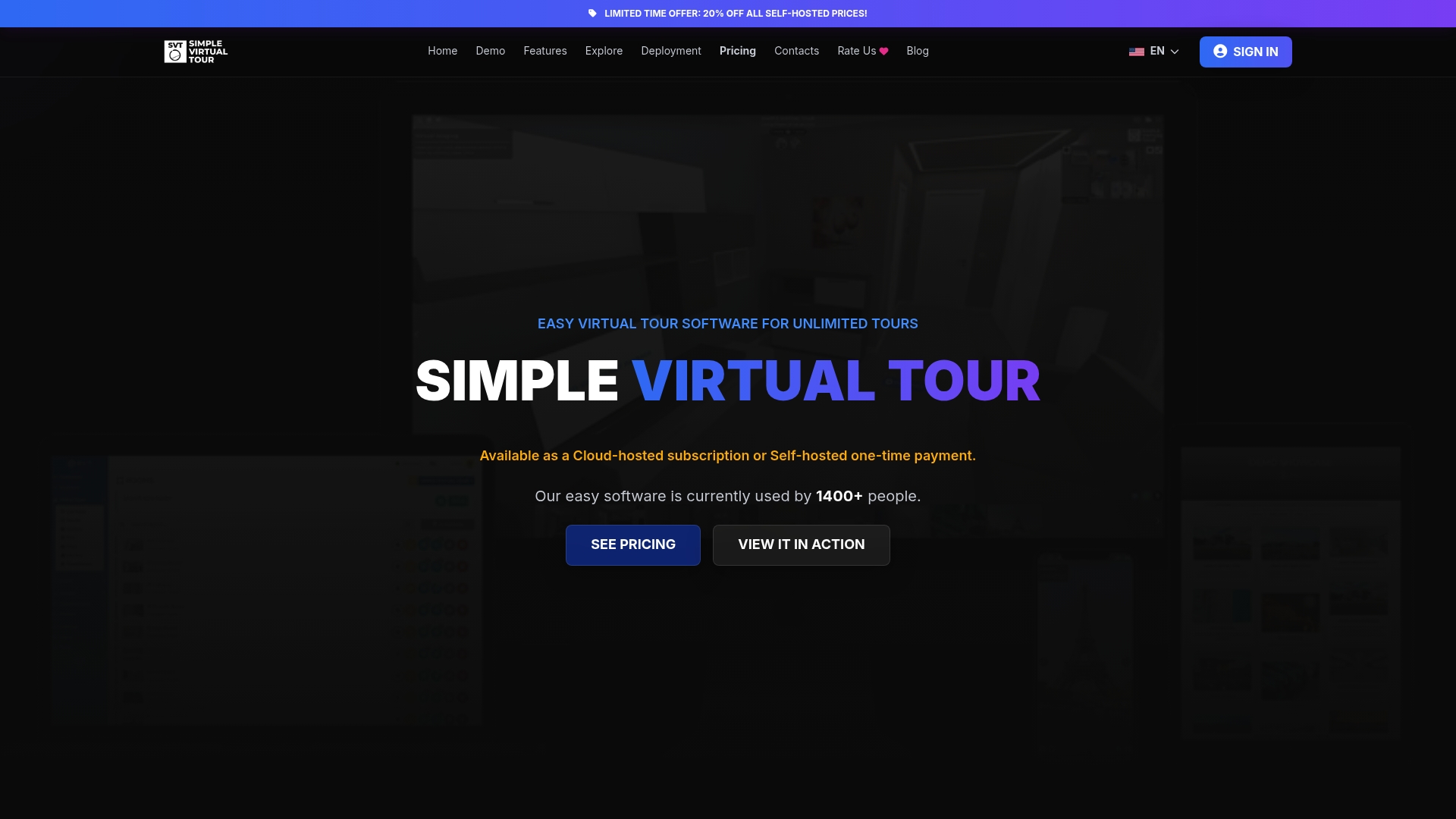
Simple Virtual Tour gives developers and content managers a configurable platform with over 1,400 active users across real estate, tourism, and education. Its intuitive backend supports caption integration, accessibility widget configuration, and both cloud-hosted and self-hosted deployment, so your team controls the environment where compliance testing happens. Whether you are setting up your first accessible tour or improving an existing one, Simple Virtual Tour provides the flexibility to implement the features this guide covers without rebuilding your workflow from scratch. Explore the platform and see how it fits your accessibility requirements.
FAQ
What does virtual tour accessibility features setup include?
Virtual tour accessibility features setup covers configuring captions, keyboard navigation, audio descriptions, sign language video integration, and user-controlled accessibility widgets to meet WCAG 2.1 Level AA and ADA standards.
Do auto-generated captions meet accessibility requirements?
Auto-generated captions do not meet accessibility requirements on their own. W3C/WAI guidance requires manual editing for accuracy, timing, and speaker identification before publishing.
How do I test keyboard navigation in a virtual tour?
Unplug your mouse and navigate the entire tour using only Tab, Enter, and arrow keys. Every hotspot, menu, and media control must be reachable and operable, with no keyboard traps.
What is a VPAT and why does it matter for virtual tour procurement?
A VPAT (Voluntary Product Accessibility Template) documents which WCAG criteria a product meets or does not meet. Requiring a VPAT from vendors helps you identify compliance gaps before committing to a platform.
How often should I audit a virtual tour for accessibility?
Run an accessibility audit after every content update, not only at launch. Adding new scenes, videos, or hotspots can break previously passing criteria and requires a targeted review.