
Compress your assets, serve them from a CDN or edge network, lazy-load anything heavy, tune the viewer's rendering settings, and then measure the result. That sequence, done in order, is virtual tour performance optimization in practice. Most tours that feel sluggish are skipping at least two of these five steps, and the fix usually shows up within a single production cycle: faster time to first frame, smoother panning, and fewer dropped connections on mobile.
TL;DR:
- Compress images to WebP or AVIF and implement lazy-loading to achieve the most immediate speed improvements, often within a day.
- Moving assets onto a CDN with long cache lifetimes and prefetching common navigation paths significantly reduces load times for repeat visitors.
- Tiling panoramas into multiple resolution levels maintains fast initial load speeds without sacrificing detail when zooming in.
- Prioritize viewer performance enhancements by lazy-loading viewers, offloading processing to web workers, and optimizing device-specific texture sets.
Table of Contents
- What Is the Right Order for Virtual Tour Performance Optimization?
- Concrete Image, Panorama, and Video Optimization Workflows
- How Do CDN and Hosting Choices Cut Latency?
- Viewer Optimizations, Lazy-Loading, and GPU Tweaks
- What KPIs Actually Prove a Performance Fix Worked?
- How Simple Virtual Tour Supports Fast, Reliable Tours
- Quick Wins vs. Infrastructure: How I'd Prioritize the Budget
- Ready to Put This Into Practice?
- Sources
What Is the Right Order for Virtual Tour Performance Optimization?
Optimization work fails when it happens out of sequence. You cannot judge whether a CDN helped if you never measured load time before switching providers, and you cannot justify edge compute if your images are still uncompressed 12MB TIFFs. Work through this order, and each step compounds the one before it.
- Audit and baseline first. Run your current tour through WebPageTest and note time-to-first-frame, total payload, and interactive time. Without this baseline, every later change is a guess.
- Fix the quick wins. Compress images, convert them to WebP or AVIF, resize oversized panoramas, and add lazy loading to any embedded viewers. These changes typically take a day and produce the most visible speed gain.
- Handle mid-tier infrastructure. Move assets onto a CDN, add cache fingerprinting so browsers reuse files intelligently, and start streaming panorama textures progressively instead of loading full resolution up front.
- Invest in high-effort, high-return work. Edge compute, device-aware personalization, and serverless warmers matter most for live guided sessions or high-traffic enterprise deployments, where dropped connections carry a real cost.
Skipping straight to step four without doing steps one through three is the single most common waste of a development budget in this space.
Concrete Image, Panorama, and Video Optimization Workflows
Format choice determines more of your load time than almost any other single decision. JPEG remains the safe default for photographic panoramas because every browser and viewer decodes it instantly. WebP typically cuts file size by 25 to 35% over JPEG at equivalent visual quality, making it the better choice for standard web delivery. AVIF compresses further still, but decode times on older mobile GPUs can offset the savings, so reserve it for desktop-heavy audiences until device support catches up.
Panoramas need a different approach than flat images. A single 8K equirectangular panorama can weigh 15MB or more if exported carelessly. Tiling that panorama into multiple resolution levels, so the viewer loads a low-resolution version first and swaps in detail as the user zooms, keeps the initial view fast without sacrificing close-up sharpness.
Video is where most tours lose the most time. Exporting at 1080p with H.264 and a bitrate around 5 to 10 Mbps balances visual quality against load time far better than dropping in raw 4K drone footage, which routinely triples payload size for a difference most viewers on a phone screen will not notice.
Better capture reduces your optimization burden before you ever touch an editor. Consistent lighting and a properly chosen camera at the scanning stage mean less correction work later, and fewer oversized source files to compress down.
- Use WebP for standard web delivery; AVIF for desktop-first audiences.
- Tile panoramas into multiple resolution levels rather than one flat export.
- Cap video at 1080p, H.264, 5 to 10 Mbps unless the audience specifically needs 4K.
- Batch-process exports with your editor's automation tools rather than hand-tuning every asset. A consistent editor workflow saves hours across a multi-property project.
Pro Tip: Run one test export at three different compression levels and view all three on an actual phone, not just your desktop monitor. The compression level that looks "acceptable" on a 27 inch screen often looks noticeably soft on a 6 inch one, and the reverse is rarely true.
How Do CDN and Hosting Choices Cut Latency?
Where your assets live matters as much as how you compressed them. A content delivery network places copies of your images, panoramas, and video on servers physically closer to each visitor, so a viewer in Denver isn't pulling a 40MB tour from a server in Frankfurt. Combine that with cache-control headers that tell the browser "this file will not change for 30 days," and repeat visitors load the tour almost instantly on their second view.
Precomputed assets beat origin transforms almost every time performance matters. If your platform resizes and compresses images on the fly every time someone loads a page, that transform work adds latency on every single request. Doing the transform once at export time and caching the result at the edge removes that cost entirely.
- Set long cache-control lifetimes (weeks, not hours) on static tour assets, and fingerprint filenames so updates bypass stale cache without forcing a full refetch.
- Prefetch the most common navigation paths, such as the entry scene and the first two hotspots most visitors click, so those loads start before the user even asks for them.
- Reserve origin-side transforms for genuinely dynamic content; precompute everything else.
Cloud-hosted deployments generally win on this front by default, since the provider already runs CDN and edge caching for you. Self-hosted setups can match or exceed that performance, but only if you configure your own CDN layer and cache headers deliberately. That extra control is exactly why some agencies and enterprise teams choose self-hosting despite the added setup work: it gives them a hosting environment they can tune to their own traffic patterns rather than a fixed configuration.
Viewer Optimizations, Lazy-Loading, and GPU Tweaks
The viewer itself is often the bottleneck, not the network. A tour embedded on a landing page has no business loading its full interactive engine before the visitor has even clicked to interact with it.
- Use a lazy-load facade: show a lightweight static preview image, and only initialize the full interactive viewer once the user clicks. This alone can cut initial page weight dramatically on pages that embed a tour below the fold.
- Stream panorama textures progressively and prioritize whatever is currently in the visitor's field of view over off-screen geometry.
- Keep JavaScript off the main thread where possible. Offload image decoding and texture processing to web workers so panning and zooming stay smooth even while assets load in the background.
- Avoid autoplay on embedded video and tours entirely. Forcing playback before the user asks for it burns mobile data with zero guarantee of engagement.
- Check Chrome's hardware acceleration settings during troubleshooting. Disabled GPU acceleration, an outdated graphics driver, or a forced software rendering flag can make an otherwise well-optimized tour stutter on an otherwise capable machine.
- Serve lower-resolution texture sets to devices with constrained memory. A flagship phone can handle a 4K panorama tile; a five-year-old mid-range Android device often cannot without stuttering.
Pro Tip: If a tour runs fine on desktop Chrome but stutters on mobile Safari, check memory usage first, not network speed. Mobile browsers cap available memory far more aggressively than desktop, and a texture set that's fine on a laptop can silently crash a mobile tab. For a deeper walkthrough on the mobile side specifically, see this mobile optimization guide.
What KPIs Actually Prove a Performance Fix Worked?
You need numbers, not impressions, to know whether a change helped. Two metrics matter more than the rest: time-to-first-frame, meaning how long until the visitor sees anything at all, and median interactive time, meaning how long until they can actually pan, click, or navigate. Frame-rate stability during navigation and perceived load, which is how fast the tour feels even if raw numbers are unchanged, round out the picture.
- Run WebPageTest before and after every change, not just once at the end of a project.
- Pair synthetic testing with real-user monitoring (RUM) to catch the slow connections and older devices that lab tests miss.
- A/B test major changes against your current live version rather than assuming a new codec or CDN setting is automatically better.
- For serverless-backed live sessions, use warmers to eliminate cold-start delays before a scheduled tour begins.
One documented case running guided live tours through edge proxies during a high-traffic event saw dropouts fall by 30% compared to the unoptimized baseline, which is the kind of gap that separates a tour that scales during a launch event from one that buckles under it.
How Simple Virtual Tour Supports Fast, Reliable Tours
Deployment choice shapes your performance ceiling before you write a single optimization setting. Simple Virtual Tour offers both cloud-hosted and self-hosted deployment, which means you pick the model that matches your traffic pattern rather than being locked into one architecture.
- Cloud-hosted deployment typically includes CDN and edge caching, reducing the need for separate infrastructure management.
- Self-hosted deployment can offer more direct control over caching rules, server location, and data handling, which can be important for teams with strict data residency or cost considerations.
- Analytics tools can help track visitor engagement and pinpoint where drop-off happens inside a tour.
- API access and live session controls can support teams running guided walkthroughs at scale, alongside plugin options for multi-user SaaS management.
. Related technical guides, including photogrammetry capture workflows, cover the production side of the same performance question.
Quick Wins vs. Infrastructure: How I'd Prioritize the Budget
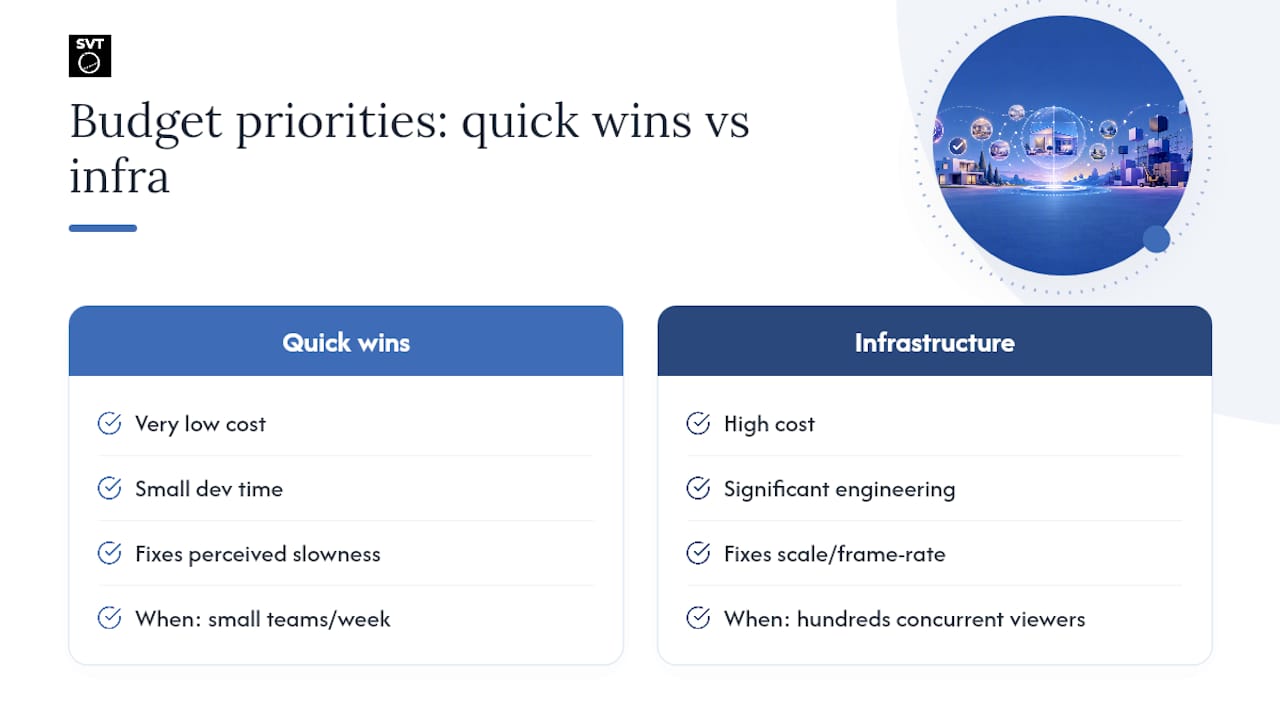
If you have a week and a small budget, spend it on lazy-loading and image compression. Those two changes alone fix the majority of "why does this feel slow" complaints, and they cost almost nothing beyond your own time.
Streaming and edge compute earn their cost only at scale, when live guided sessions or heavy simultaneous traffic make raw frame-rate stability the actual bottleneck rather than perceived load. A small real estate brokerage rarely needs serverless warmers. A team running scheduled live tours for hundreds of concurrent viewers usually does. Ask yourself which failure mode you're actually protecting against before spending on the expensive fix.
— Andrea
Ready to Put This Into Practice?
Reading a checklist is one thing. Having a platform built to support every item on it is another. Simple Virtual Tour gives you both cloud-hosted and self-hosted deployment from the same software, so whether you need turnkey CDN and edge caching or full control over your own server environment, you're not stuck retrofitting a platform that was never built for either.
A technical demo walks through exactly how your existing panoramas, video, and hotspots would perform once compressed, tiled, and served through Simple Virtual Tour's deployment options, cloud or self-hosted. If you're managing a large asset library already, start by requesting an audit of your current tour's load profile before deciding which deployment model fits your traffic. From there, enabling CDN delivery and scheduling a walkthrough of the live session and API features takes a single conversation. Explore the full feature set or go straight to start your trial to see how quickly your current tours could load with the right configuration behind them.
Sources
- Advanced Virtual Viewings: Low-Latency 3D Tours for Teams
- Reduce Load Time on Virtual Tours with Easy Fixes
- Getting More Out of a Finished Matterport Tour | Adostrophe