
The fastest way to get a virtual tour onto your Facebook Page is to share the tour link in a Page post or upload a 360 photo directly, both of which work on mobile and desktop. If you want a tour embedded right inside your Page as its own tab, you can add a Static HTML app and paste an iframe, though that route needs Page admin access and won't display for every mobile visitor. Simple Virtual Tour can generate both the shareable link and the 360 export you need for either path.
TL;DR:
- Sharing a virtual tour link or uploading a 360 photo works on all devices and is quick to implement, making it suitable for most businesses.
- Embedding a tour inside a Facebook tab requires admin access and may not display on mobile devices, making it less reliable for broad audiences.
- Promoting a virtual tour with a native short video and storytelling significantly improves engagement compared to static link posts or complex embeds.
- Most face display failures stem from permissions, insecure hosting, or mobile compatibility issues, which are fixable without technical skills.
- Focusing on reach and narrative-driven teasers yields better results than investing heavily in advanced embedding techniques.
Table of Contents
- How Do You Post a Facebook Virtual Tour?
- How Do You Publish a Google Street View Tour to Facebook?
- Why Isn't My Virtual Tour Showing Up on Facebook?
- How Do You Promote a Virtual Tour on Facebook?
- What Should You Look for in Virtual Tour Software?
- What Actually Moves the Needle Here?
- Try Simple Virtual Tour for Your Next Facebook Post
- Where to Learn More
- Sources
How Do You Post a Facebook Virtual Tour?
You have three realistic options for getting a facebook virtual tour live on your Page, and they are not equally fast. Two work everywhere, on every device, in minutes. The third gives you a more integrated look but comes with real strings attached.
Method A: Share the tour link in a post
This is the method most business owners should start with.
- Copy the public link to your published tour (Simple Virtual Tour generates one automatically when you publish).
- Open your Facebook Page and start a new post.
- Paste the link first, let Facebook generate a preview card, then delete the raw URL text if you want a cleaner post, keeping the preview image and headline.
- Add one sentence of context. "Walk through our showroom before you visit" beats "Check out our virtual tour."
- Pin the post to the top of your Page so it stays visible.
For a stronger click rate, attach a short teaser video or a striking 360 screenshot instead of relying on the auto-generated preview. Facebook's native preview thumbnails are often just the first frame of your tour, which is rarely your best angle.
Method B: Upload 360 photos directly
Facebook accepts equirectangular JPEG files (the standard 2:1 panorama format most 360 cameras and virtual tour platforms export) as native 360 photos, and it auto-detects the format in most cases.
- Upload the file through the regular photo uploader on your Page.
- If Facebook doesn't tag it as 360 automatically, check that the image metadata includes the correct panorama tags. Most photogrammetry and 360 capture tools embed this data by default.
- Use this method when you want a single standout room or view, not the full multi-scene tour experience.
Link sharing works better for full walkthroughs. Native 360 upload works better for one hero shot you want people to swipe around inside the feed itself.
Method C: Embed via a Page tab
If you want the tour to live inside a Facebook tab rather than just linked from a post, you'll need a Static HTML iframe app (available through the Facebook App Center or similar third-party tab tools). Add the app to your Page, open its settings dashboard, and paste your hosted iframe code or a Google Maps embed snippet. Rename the tab something clear, like "Virtual Tour," and reorder it near the top of your Page's tab list. Facebook's own policies around custom tabs shift periodically, so treat this as the advanced option, not the default one.
How Do You Publish a Google Street View Tour to Facebook?
If your tour lives on Google Business Photos or Street View, Google gives you a direct path to both a share link and an embed code.
- Open your published tour at maps.google.com.
- Click the three-dot menu and select "Share or embed image."
- Copy either the plain link (for a Page post) or the iframe embed code, exactly as Google's own Business Photos and Street View help documentation describes it.
If you're going the embed route, paste that iframe code into your Static HTML tab app's dashboard the same way you would with any other hosted tour. A step-by-step walkthrough from Merchant View 360 covers this exact process, including where people commonly get stuck.
A few things to double check before you rely on this:
- Confirm your embed code uses HTTPS. Facebook blocks mixed-content embeds outright.
- Confirm the account setting up the tab actually holds a Page admin role.
- Recheck Facebook's current tab documentation. Policies around custom tab visibility have changed more than once, and older tutorials sometimes reference rules that no longer apply.
Why Isn't My Virtual Tour Showing Up on Facebook?
Most display failures trace back to one of four causes, and they're all fixable without touching code.
- Permissions: Confirm the person posting or installing the tab actually has an admin or editor role on the Page. A contributor-level role won't let you add apps.
- Blank iframe: If the tab loads but shows nothing, check that the app was fully added (not just installed), the iframe URL is HTTPS, and the hosting page's response headers allow embedding. A restrictive X-Frame-Options header will silently block the whole thing.
- Mobile visibility: Many Page tabs simply don't render on the Facebook mobile app. If most of your audience is on phones, treat link posts and native 360 uploads as your primary method, not the tab.
- Missing preview thumbnail: If your link post shows no image, add Open Graph tags to your tour's hosting page, or skip relying on auto-preview entirely and attach your own image or video directly to the post.
Pro Tip: Before you tell clients the tour is live, open it in an incognito browser window or log in with a colleague's non-admin account. Admins sometimes see content that regular visitors can't, which hides permission errors until a customer reports them.
How Do You Promote a Virtual Tour on Facebook?
Posting the tour is the easy part. Getting people to actually click into it takes a little more thought.
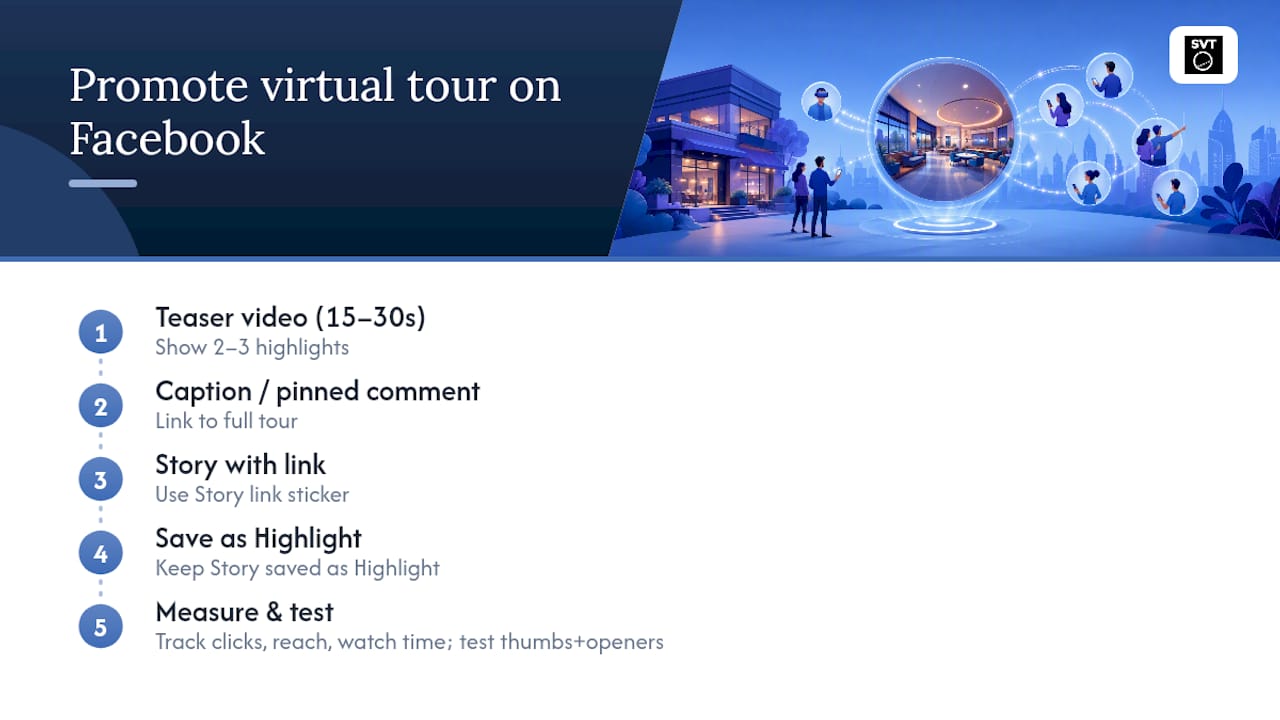
Start with a short native video, 15 to 30 seconds, showing two or three highlights from the space, then direct viewers to the full tour in the caption or a pinned comment. Native video autoplays in the feed and earns more initial attention than a static link card. Pair that with a Story that either uses a link sticker or points viewers to your pinned post, and keep it saved as a Highlight so it doesn't disappear after 24 hours.
The framing matters as much as the format. A tour presented as "explore our lobby, tasting room, and rooftop patio" reads as an invitation. A bare link labeled "virtual tour" reads as homework. Research on tour videos promoted through social channels found that only about 15% achieved strong engagement, largely because most lacked any narrative structure. A case study on a seminary's Instagram tour backs this up. Their strongest results came from treating the tour as a guided story, not a file dump.
Track link clicks, reach, and average watch time on your teaser video, then test different thumbnails and opening lines against each other. Small changes to the first three seconds of a video often move engagement more than anything you do to the tour itself, a point echoed in broader visual storytelling guidance for social content.
What Should You Look for in Virtual Tour Software?
Every method above depends on having a tour that actually exports cleanly into the formats Facebook accepts. Virtual tour platforms may support both cloud hosted and self hosted deployment options, which matter if you need control over where your tour data lives or want to avoid recurring hosting costs long term. It can generate 360 exports suitable for native Facebook photo uploads, and may support Google Street View publishing for readers using Method C above. Some virtual tour platforms include live session hosting and e commerce integration for businesses that want to sell or book directly from a tour, plus a multilingual interface and a backend built for non-technical staff. Many users run tours through some platforms, spanning real estate, hospitality, and tourism, each relying on a publish-and-share workflow like the one described in this guide.

What Actually Moves the Needle Here?
Most guides to Facebook virtual tours spend the bulk of their word count on iframe embedding, as if the tab were the goal. It usually isn't. For a small business, the tab is the slowest, most fragile option of the three, dependent on a third-party app staying compatible with whatever Facebook changes next. A link post pinned to the top of your Page, paired with a genuinely well-shot teaser clip, will outperform a technically impressive embed almost every time, simply because more of your audience will actually see it on their phone.
Where the conventional advice falls short is treating "getting the tour online" as the finish line. The research on narrative structure is blunt about this: tours without a story attached mostly underperform, regardless of production quality. If you do one thing differently after reading this, make it the 20 second teaser video, not the embed code.
Prioritize reach first, polish second. Get the link in front of people on the device they're actually using, then worry about whether it lives in a tab.
— Andrea
Try Simple Virtual Tour for Your Next Facebook Post
If you're tired of exporting files that don't quite fit what Facebook accepts, Simple Virtual Tour handles the entire chain from one platform. Create the tour, export it as a 360 photo for direct upload, generate a shareable link for your next Page post, or pull an iframe for a Page tab, all without touching code or hiring a developer.
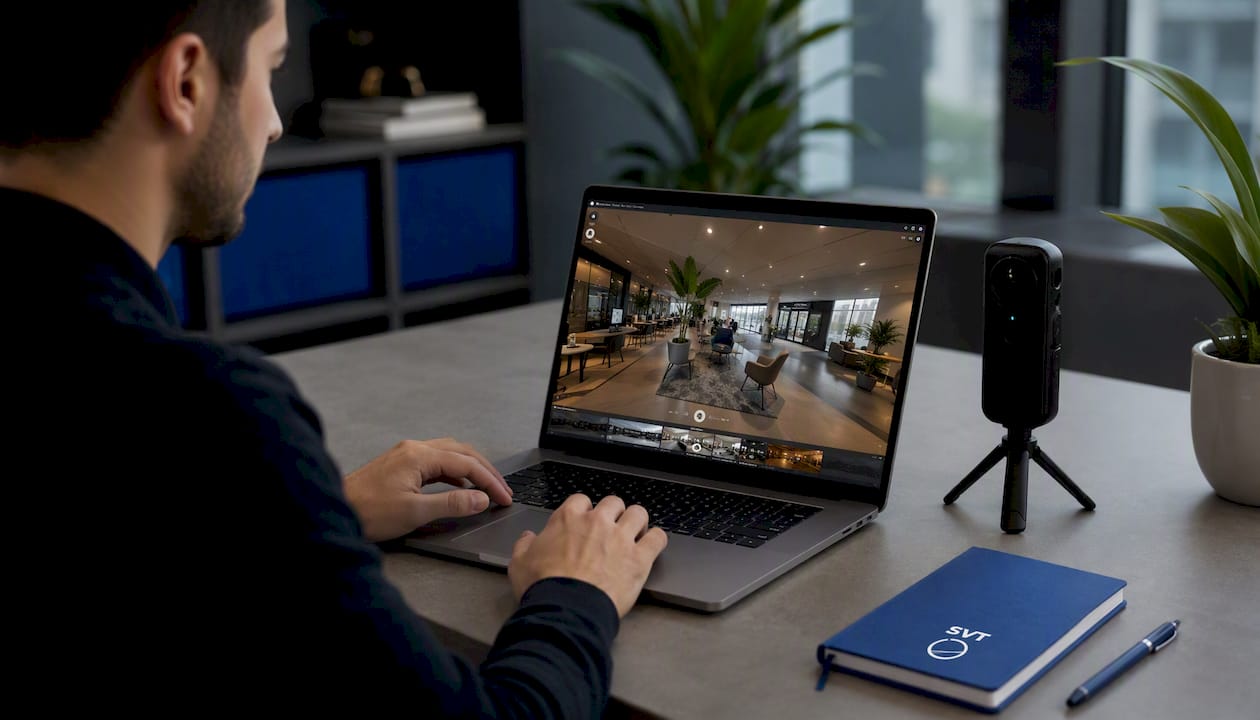
- A free trial gives you access to the tour builder, 360 export options, and hosted sharing links so you can test the exact workflow covered in this guide before committing.
Start building your first tour and grab your publish-ready tour link today.
Where to Learn More
- Google Business Photos / Street View help
- Street View embed walkthrough
- Why virtual tours work on social
- Simple Virtual Tour blog
Sources
- Google Business Photos / Street View help
- How to embed a Google Street View Trusted virtual tour on Facebook – Merchant View 360
- Insta Tour: A New Way to Virtually Visit Princeton Seminary (CASE)
- Evaluation of narrative elements of virtual tour video via Instagram as media promotion of National Parks in Indonesia (IOPscience)